بستن

safeland.ir@gmail.com       +98 21 88 81 48 12

Tag Archive for: تعمير ديتا پروژکتور

توسط

Merch Source Projector Entertainment II Outer Lens Replacement

Introduction

Do you have a blurry image or a broken outer lens? Follow these step by step instructions to learn how to disassemble the projector and remove the outer lens for your repairs.

Step 1 Outer Casing
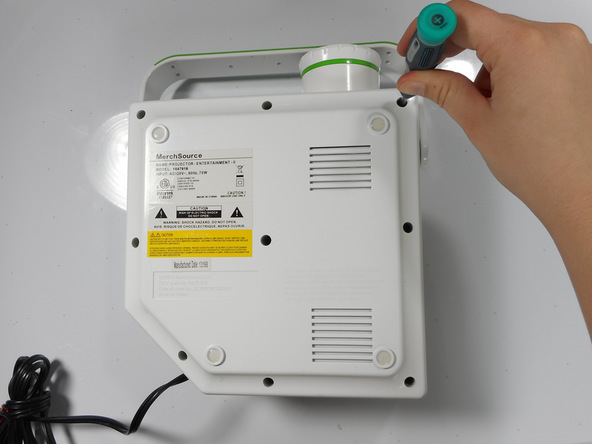
 
Image 1/2: Image 2/2:


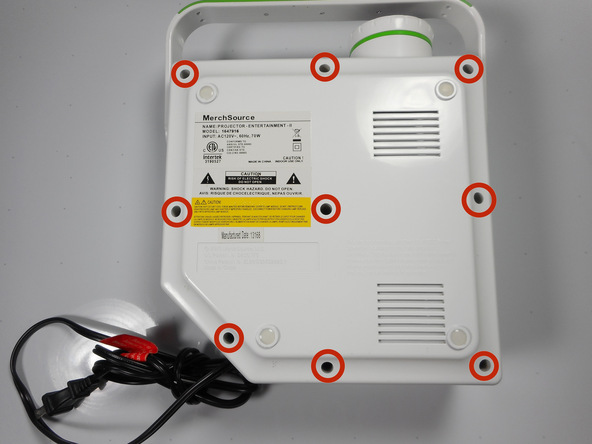
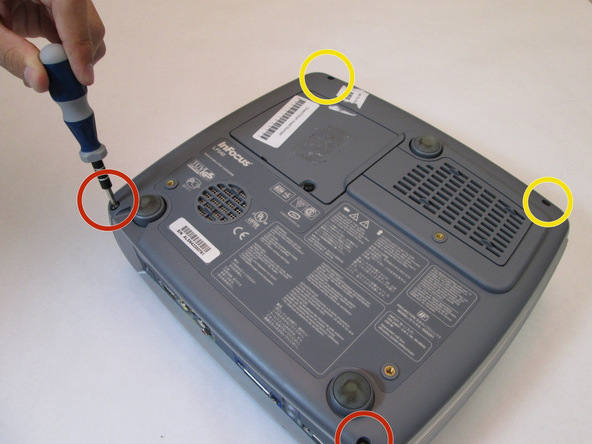
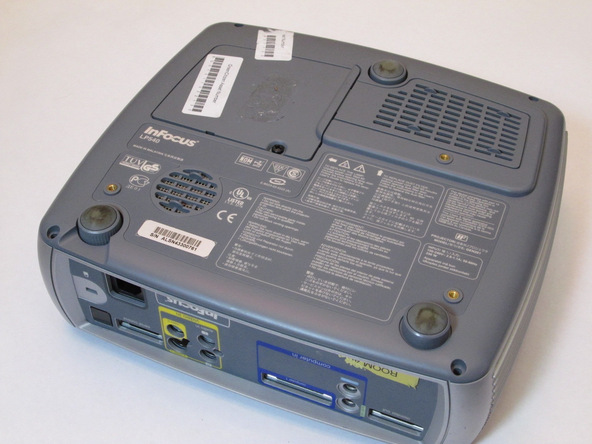
Flip the projector onto its back and unscrew the nine 15mm screws using the Phillips #0 screw driver.


Step 2
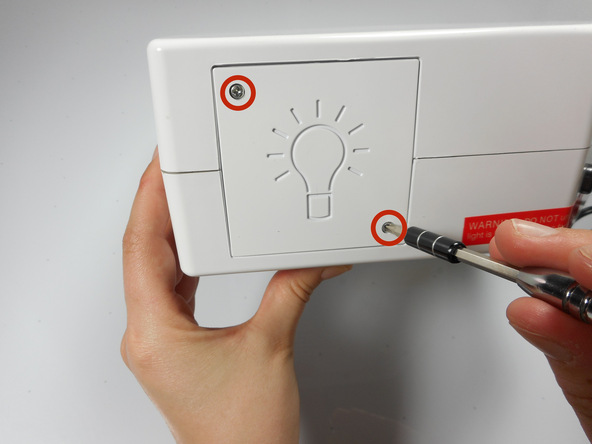
 
Image 1/1: The bottom right panel screw does not come completely out the panel door.


Flip the projector right side up and unscrew the two 12mm screws on the light bulb panel located at the rear of the projector with a Phillips #0 screw head.


The bottom right panel screw does not come completely out the panel door.


Step 3
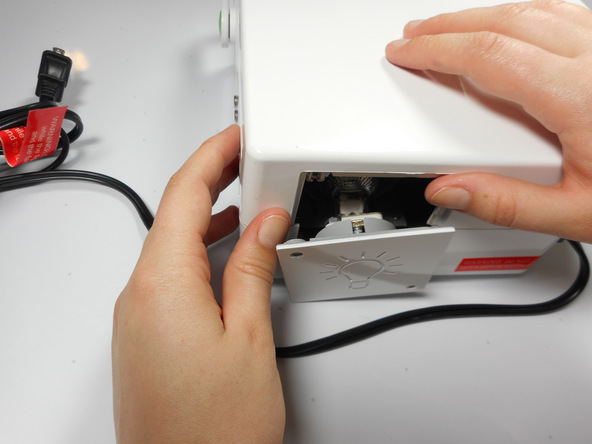
 
Image 1/2: Image 2/2:


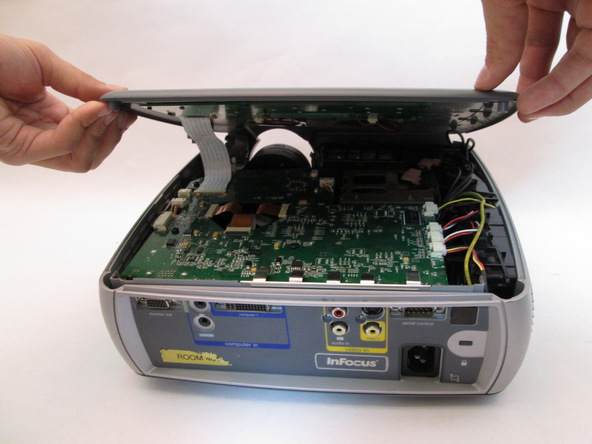
Using your hands, gently pry the top and bottom of the projector casing apart.


Step 4 Ribbon Cable Detachment

 
Image 1/2: Once the ribbon cable is disengaged gently pull the cable off the motherboard.Image 2/2: Once the housing is disengaged, the ribbon cable should slide out easily. Do not pull too hard on the ribbon cable as it is very fragile.


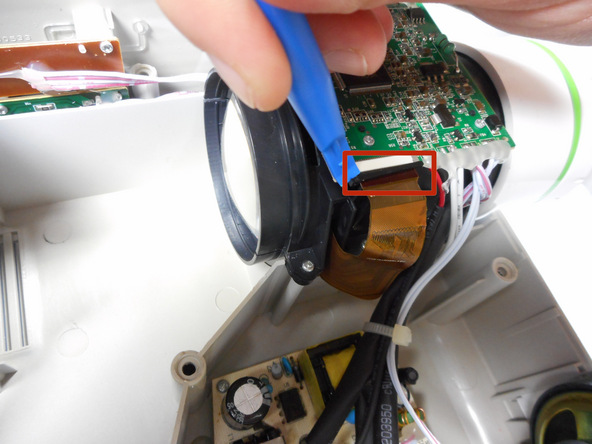
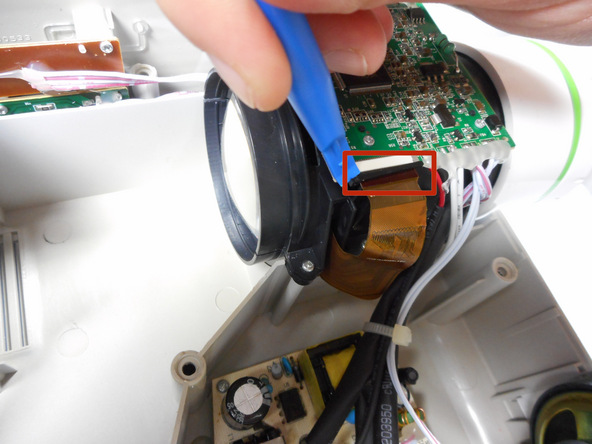
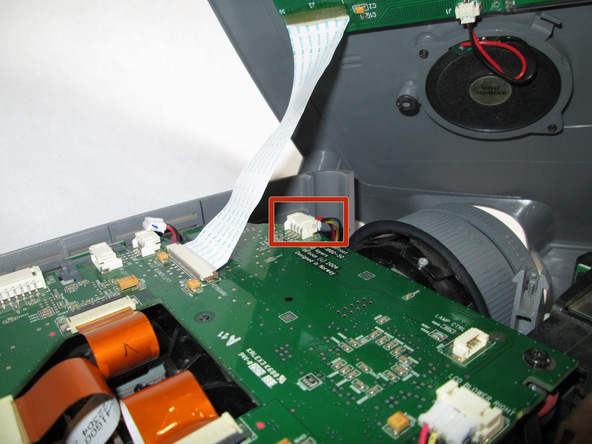
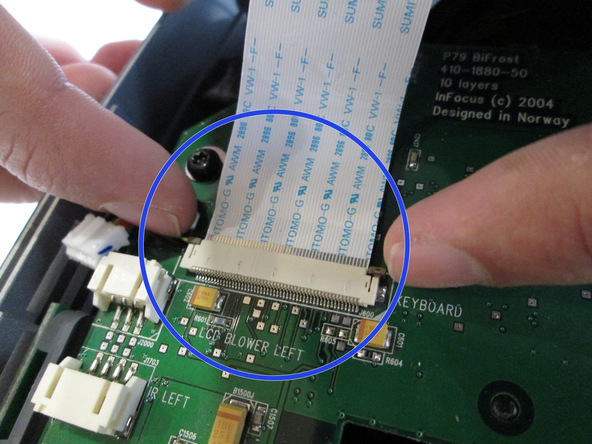
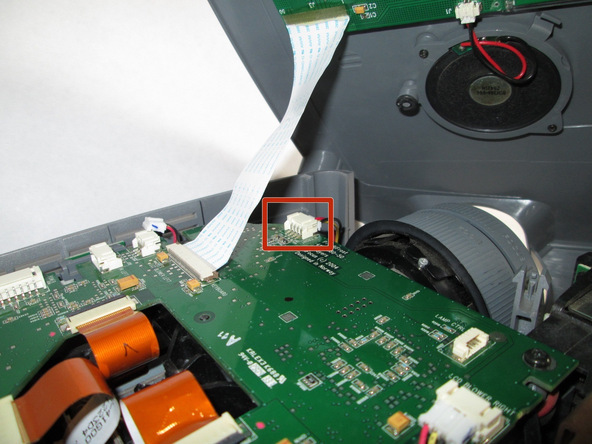
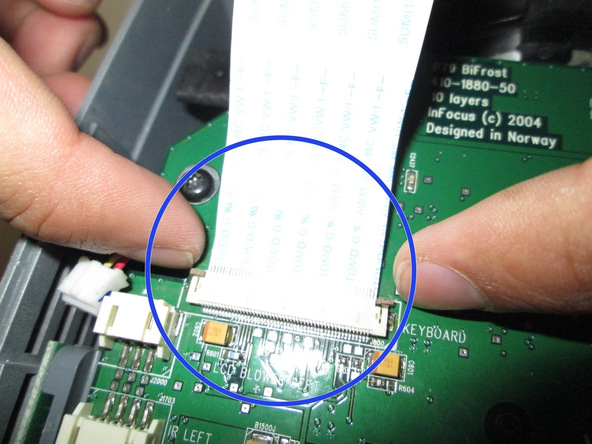
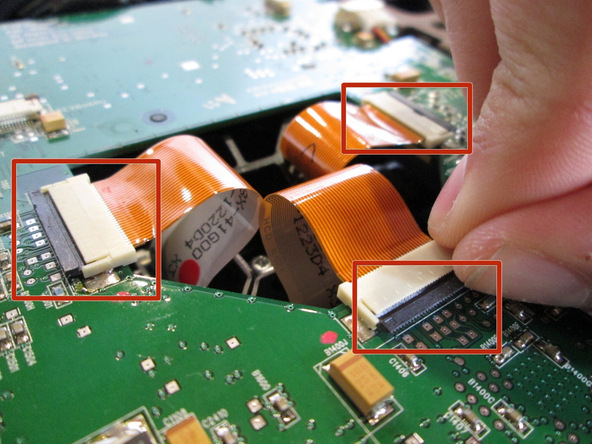
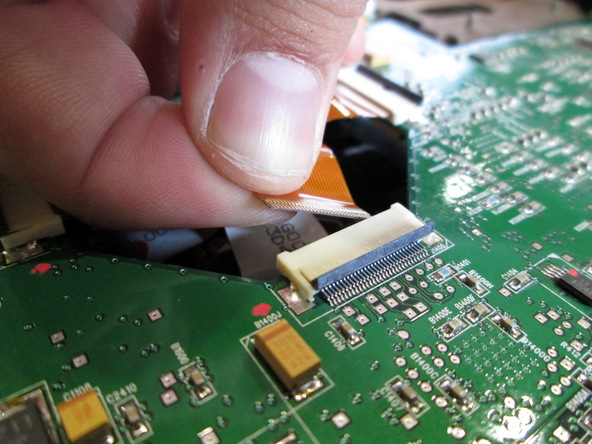
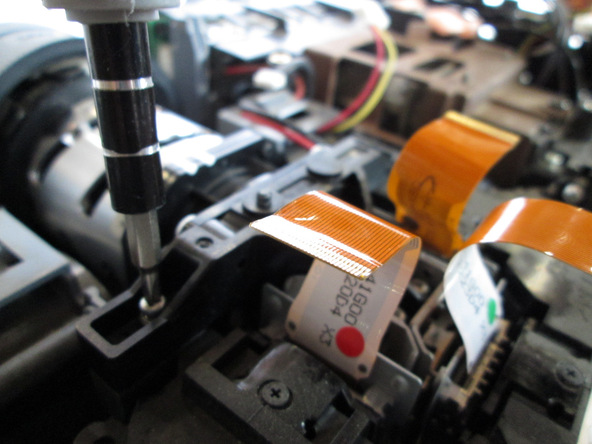
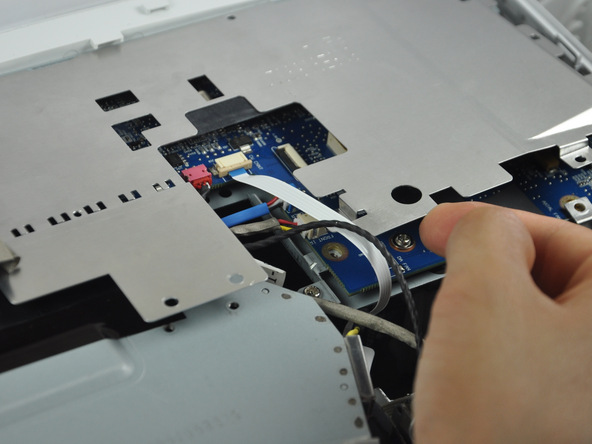
Use the plastic opening tool to gently disengage the black clip housing from the ribbon cable.


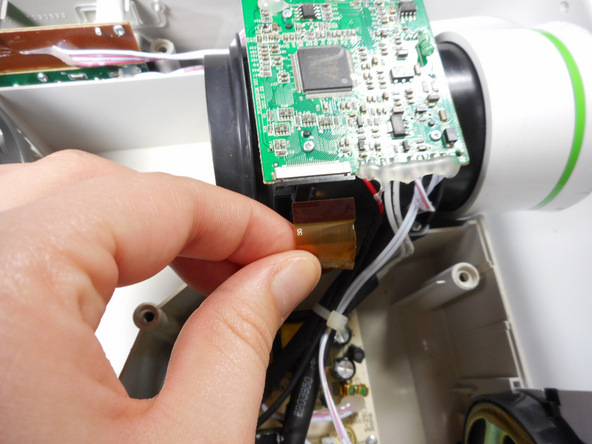
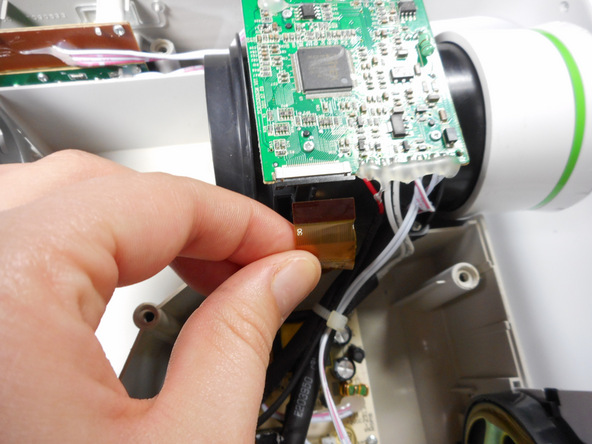
Once the ribbon cable is disengaged gently pull the cable off the motherboard.


Once the housing is disengaged, the ribbon cable should slide out easily. Do not pull too hard on the ribbon cable as it is very fragile.


Step 5 Motherboard Detachment

 
Image 1/3: Once loose, lift the motherboard off of the lens casing, and move it away from the workspace.Image 2/3: Be sure not to damage any of the wires atached to the motherboard.Image 3/3: Be sure not to damage any of the wires atached to the motherboard.


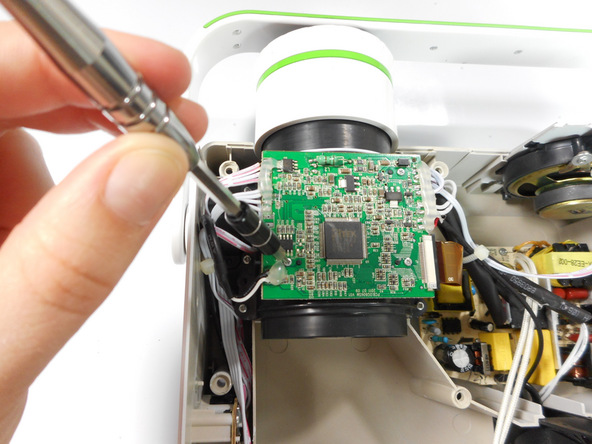
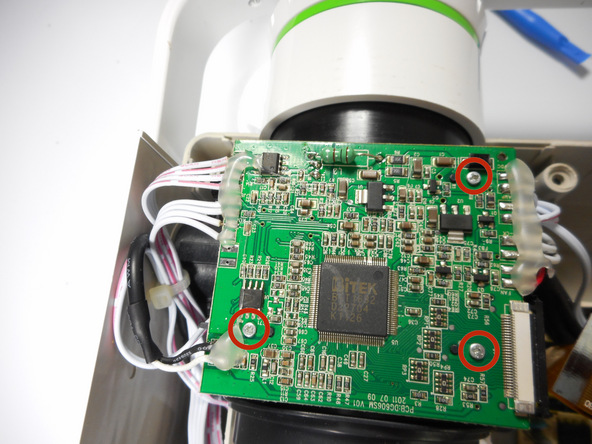
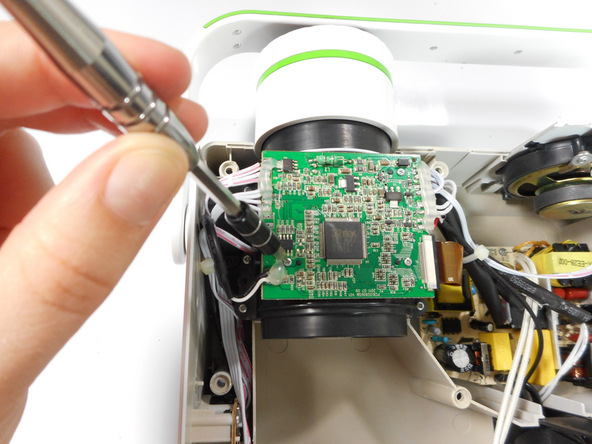
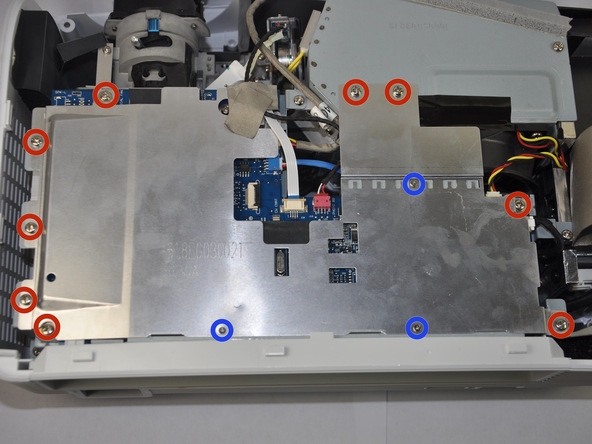
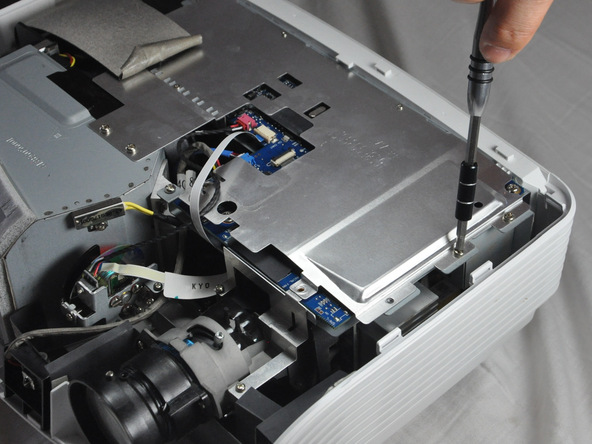
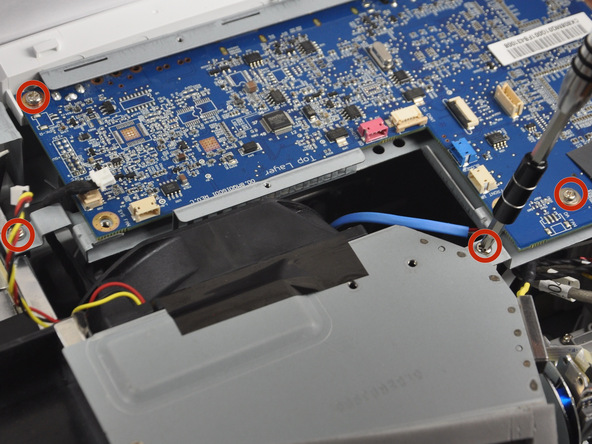
Unscrew the three 7 mm screws from the motherboard with the Phillips #0 screw driver.


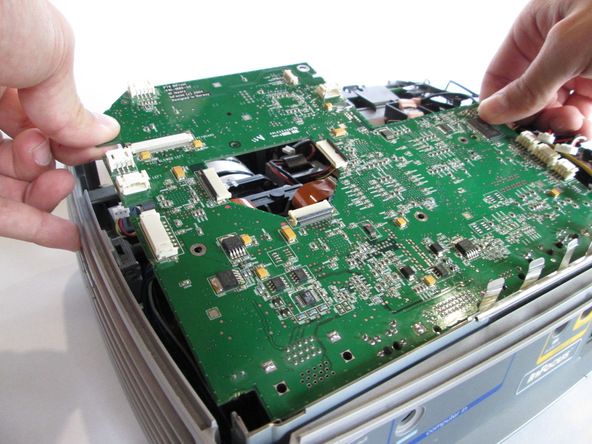
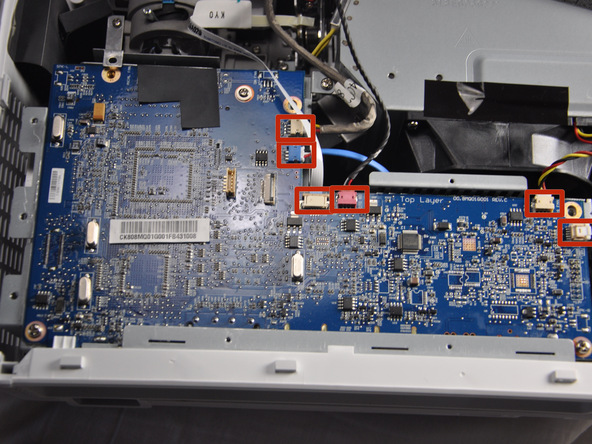
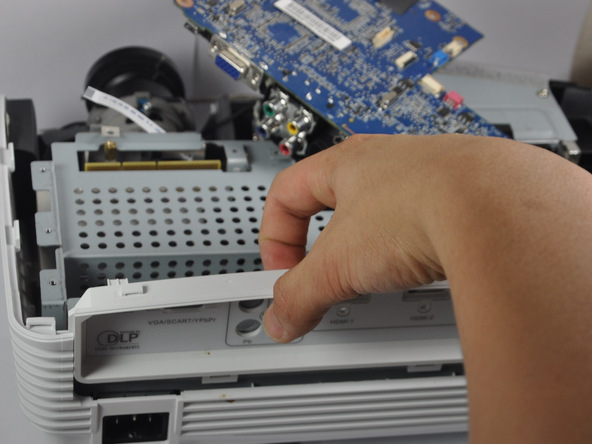
Once loose, lift the motherboard off of the lens casing, and move it away from the workspace.


Be sure not to damage any of the wires atached to the motherboard.


Step 6 Lens Casing Detachment

 
Image 1/3: Unscrew the two 12mm Phillips screws using the Phillips #0 screw driver.Image 2/3: Gently remove the entire lens casing from itImage 3/3: Gently remove the entire lens casing from it


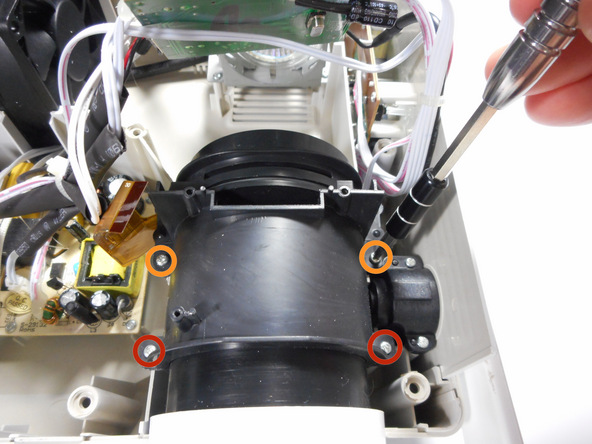
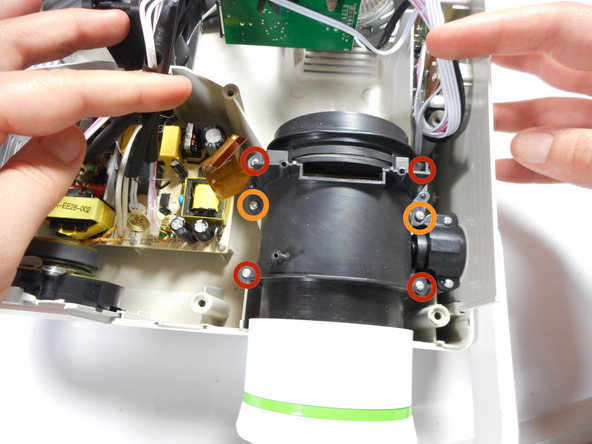
Unscrew the four 15mm Phillips screws using the Phillips #0 screw driver.


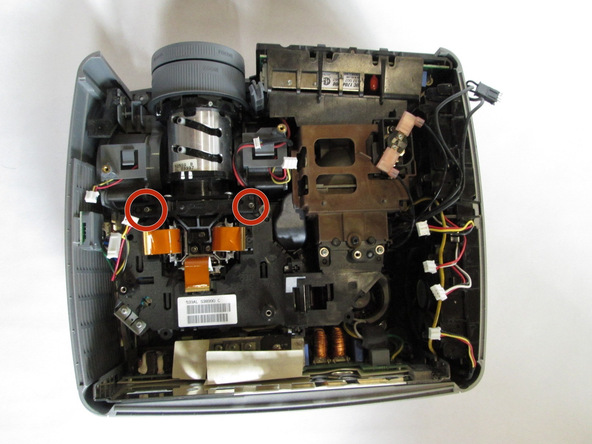
Unscrew the two 12mm Phillips screws using the Phillips #0 screw driver.


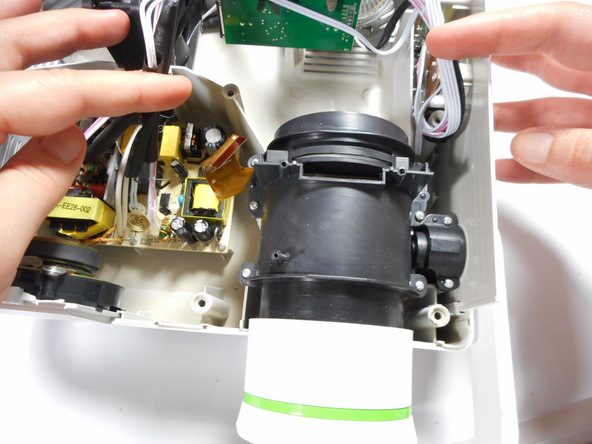
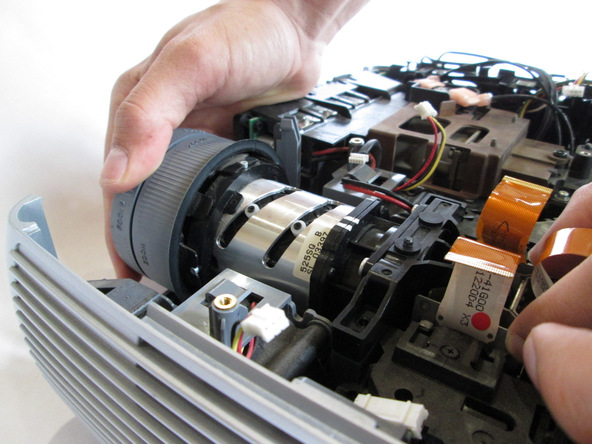
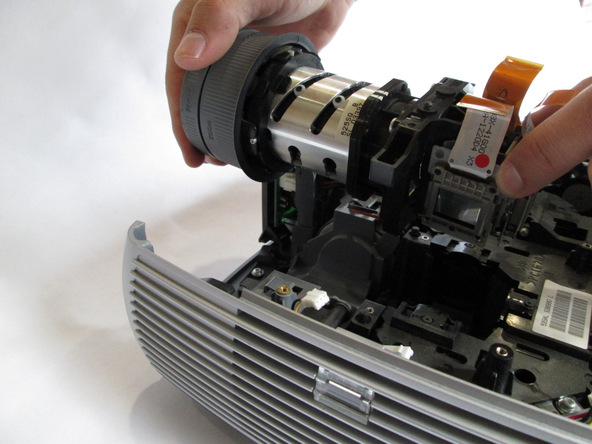
Gently remove the entire lens casing from it’s position.


Step 7 Lens Casing Seperation

 
Image 1/3: Separate the casing completely from the inner lens using your hands.Image 2/3: This should release the outer lens and itImage 3/3: As you separate the outer casing, the lens and digital display box may fall out of their encasement.


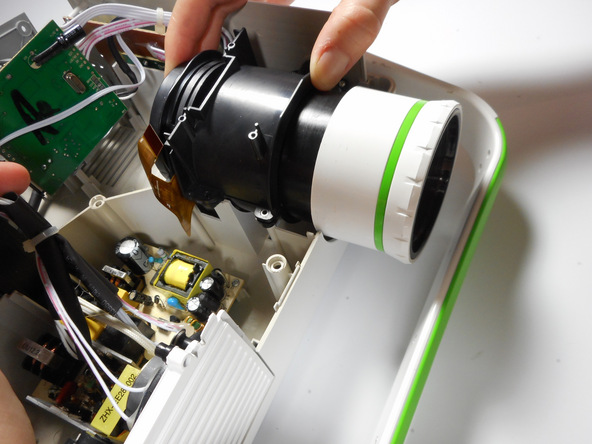
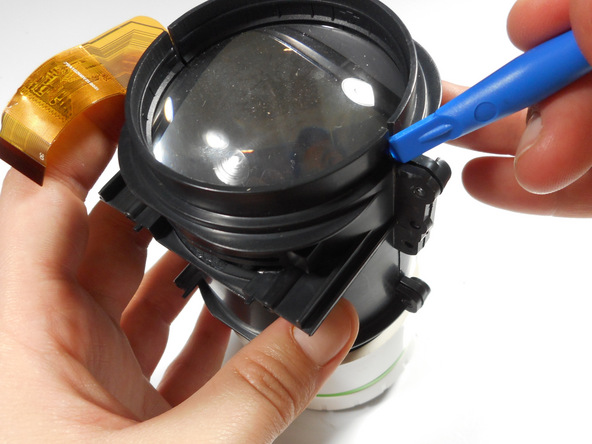
Using the plastic opening tool, slightly separate the casing holding the large lens in place.


Separate the casing completely from the inner lens using your hands.


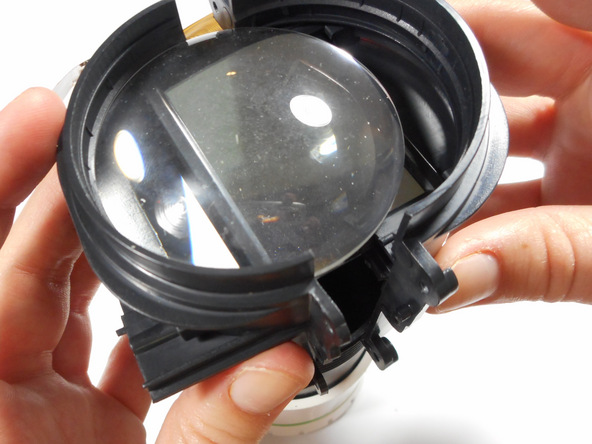
This should release the outer lens and it’s immediate casing.


As you separate the outer casing, the lens and digital display box may fall out of their encasement.


Although there are threads connecting the outer lens casing and the inner lens casing, do not be fooled. The outer lens casing cannot be disconnected by unscrewing it.


Step 8 Outer Lens Casing Seperation

 
Image 1/3: Separate the white outer casing from the black outer casing.Image 2/3: Separate the white outer casing from the black outer casing.Image 3/3: Separate the white outer casing from the black outer casing.


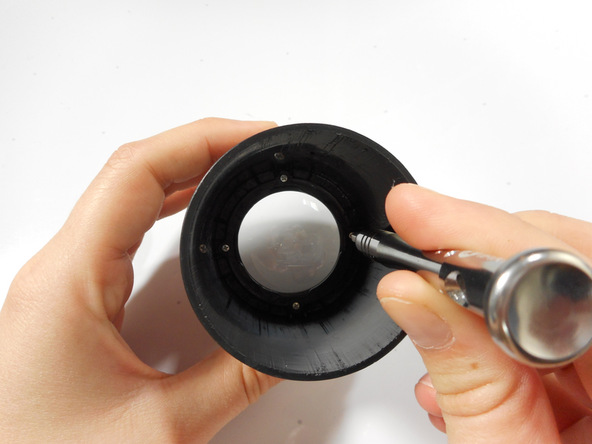
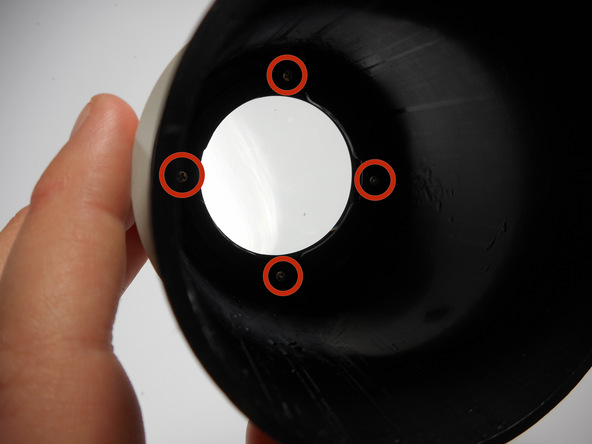
Unscrew the four 8mm Phillips screws at the base of the outer lens casing using the Phillips #0 screw driver.


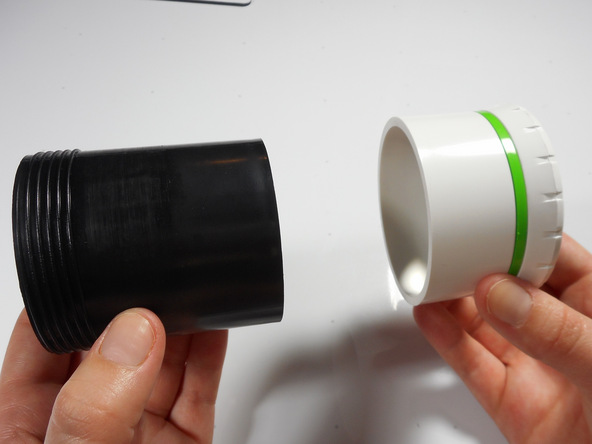
Separate the white outer casing from the black outer casing.


Step 9 Final Outer Lens Removal


Image 1/2: The outer lens is now free and ready for replacement.Image 2/2: The outer lens is now free and ready for replacement.


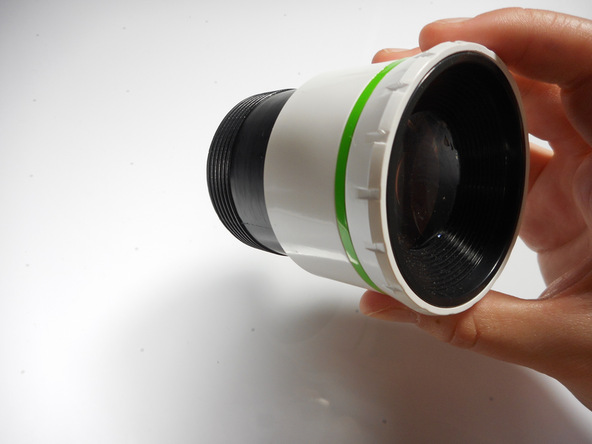
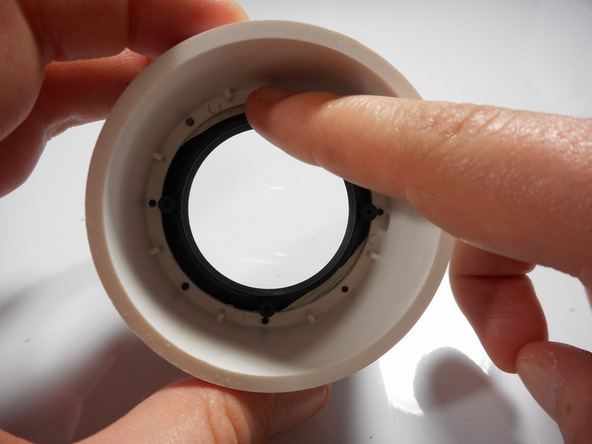
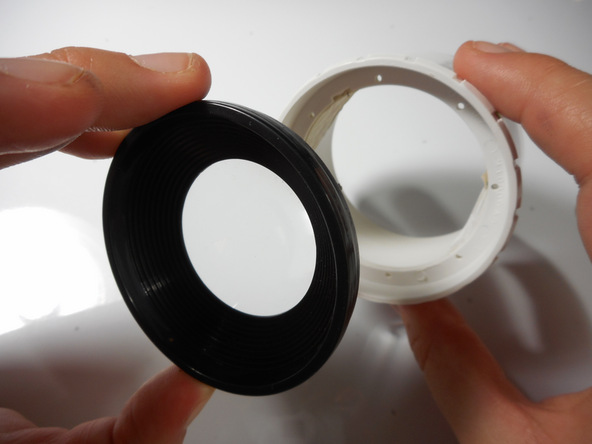
Using your finger, gently push the lens out of its white encasement.


The outer lens is now free and ready for replacement.

توسط

Merch Source Projector Entertainment II Motherboard

Introduction

Follow this guide to repair components on the logic board. All you will need a solder gun and steady hands.

Step 1 Outer Casing

 
Image 1/2: Image 2/2:


Flip the projector onto its back and unscrew the nine 15mm screws using the Phillips #0 screw driver.


Step 2
 
Image 1/1: The bottom right panel screw does not come completely out the panel door.


Flip the projector right side up and unscrew the two 12mm screws on the light bulb panel located at the rear of the projector with a Phillips #0 screw head.


The bottom right panel screw does not come completely out the panel door.


Step 3
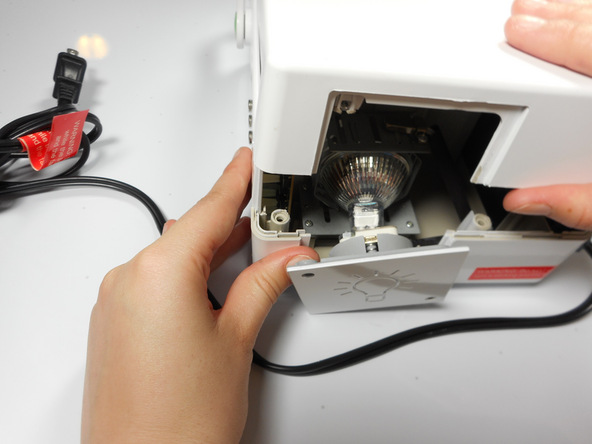
 
Image 1/2: Image 2/2:


Using your hands, gently pry the top and bottom of the projector casing apart.


Step 4 Motherboard

 
Image 1/2: Once the ribbon cable is disengaged gently pull the cable off the motherboard.Image 2/2: Once the housing is disengaged, the ribbon cable should slide out easy. Do not pull too hard on the ribbon cable as it is very fragile.


Use the plastic opening tool to gently disengage the ribbon cable from its back housing.


Once the ribbon cable is disengaged gently pull the cable off the motherboard.


Once the housing is disengaged, the ribbon cable should slide out easy. Do not pull too hard on the ribbon cable as it is very fragile.


Step 5
 
Image 1/2: Be sure not to damage any of the wires atached to the motherboard.Image 2/2: Be sure not to damage any of the wires atached to the motherboard.


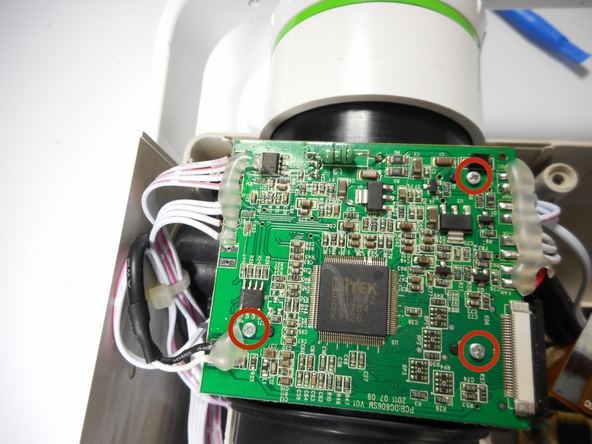
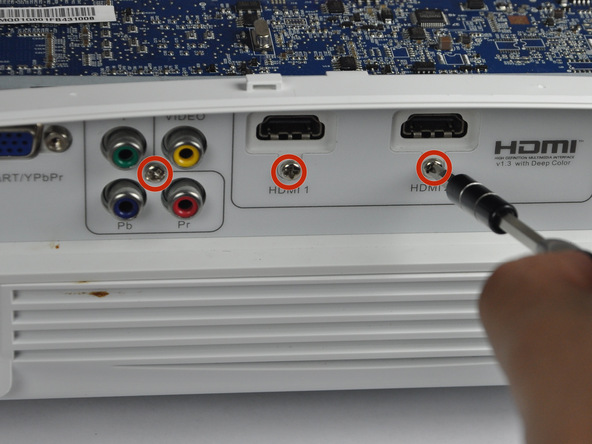
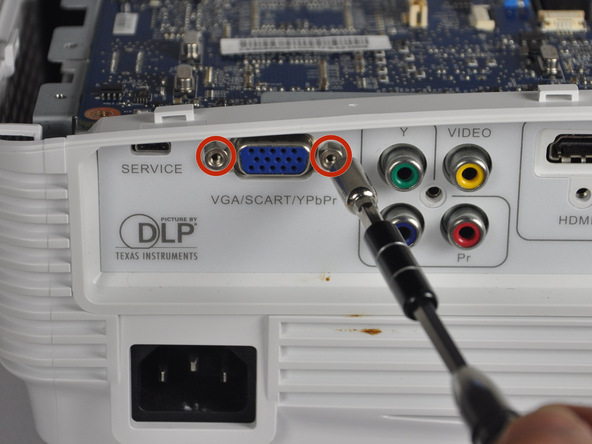
Unscrew the three 6 mm screws from the motherboard with the Phillips #0 screwdriver.


Be sure not to damage any of the wires atached to the motherboard.


Step 6
 

Image 1/2: Once connections are soldered off, the motherboard should be detached and ready for replacement.Image 2/2: Need some help? Follow this [guide|750|guide] to learn soldering basics.


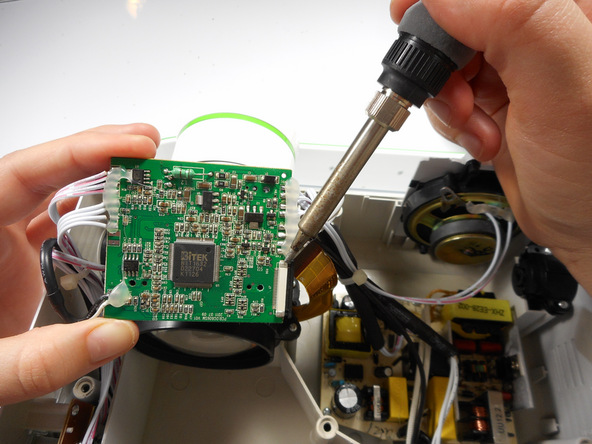
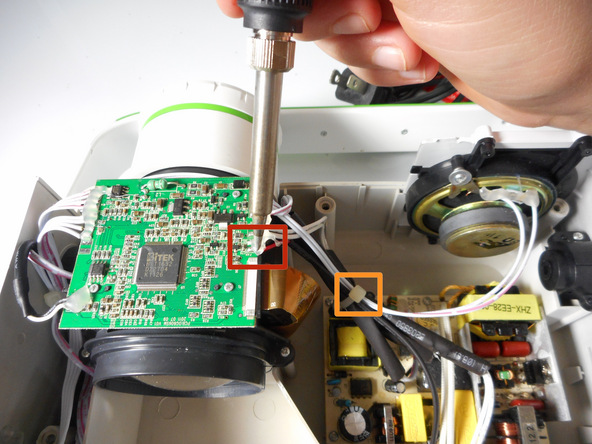
Solder off all of the connections on the motherboard with a soldering iron.


Once connections are soldered off, the motherboard should be detached and ready for replacement.


Need some help? Follow this guide to learn soldering basics.


While soldering the metal connections can get very hot. Never touch the iron with your hand. also make sure that the projector is fully turned off and not plugged in.


If there is hot glue on top on the connection with the motherboard, you will need to peel it off using your fingers.

توسط

Merch Source Projector Entertainment II Cooling Fan Replacement

Introduction

Is your projector overheating? Is it powering down at random times? Use this guide to replace the malfunctioning fan. Replacing the fan requires a fine tip soldering iron and should be done by those with solder experience.

Step 1 Outer Casing

 
Image 1/2: Image 2/2:


Flip the projector onto its back and unscrew the nine 15mm screws using the Phillips #0 screw driver.


Step 2

 
Image 1/1: The bottom right panel screw does not come completely out the panel door.


Flip the projector right side up and unscrew the two 12mm screws on the light bulb panel located at the rear of the projector with a Phillips #0 screw head.


The bottom right panel screw does not come completely out the panel door.


Step 3

 
Image 1/2: Image 2/2:


Using your hands, gently pry the top and bottom of the projector casing apart.


Step 4 Cooling Fan

 
Image 1/2: Image 2/2:


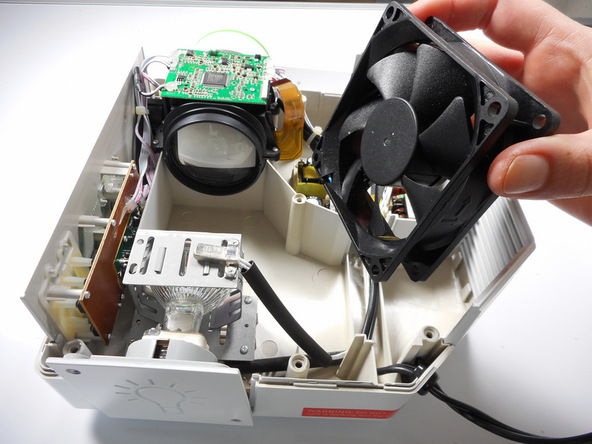
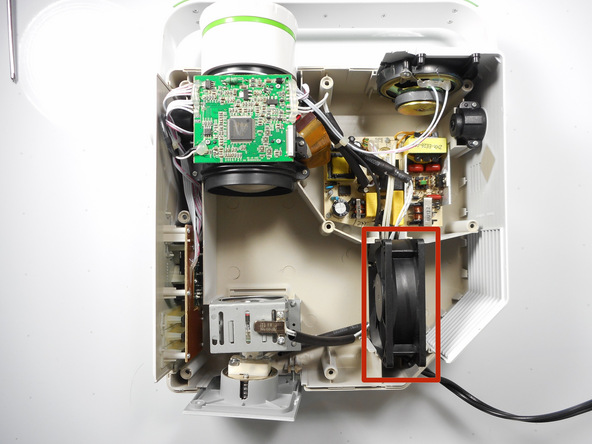
Locate the 80 mm fan and slide upward straight out of the housing.


Step 5


Image 1/2: If there are zip ties around the cables, they will need to be cut to remove the fan.Image 2/2: Need some help? Follow this [guide|750|guide] to learn soldering basics.


Unsolder the red and black connections off of the motherboard.


If there are zip ties around the cables, they will need to be cut to remove the fan.


Need some help? Follow this guide to learn soldering basics.


While soldering the metal connections will get very hot. Never touch the iron with your hand.


Make sure that the projector is fully turned off and not plugged in. Allow up to 30 minutes for projector to cool down.


If there is hot glue within the connection in on the motherboard, you will need to peel it off simply using your fingers.

توسط

InFocus LP540 Projector Speakers Replacement

Step 1 Speakers


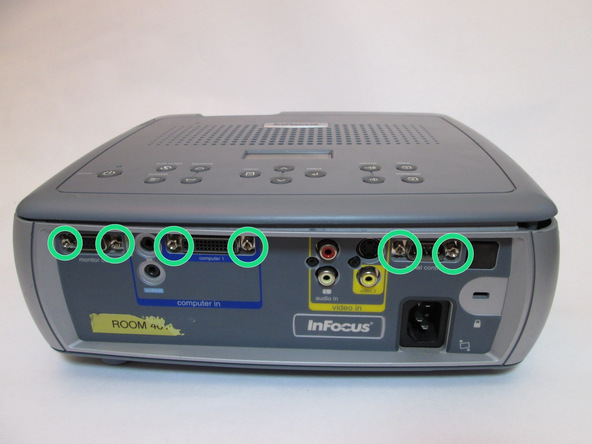
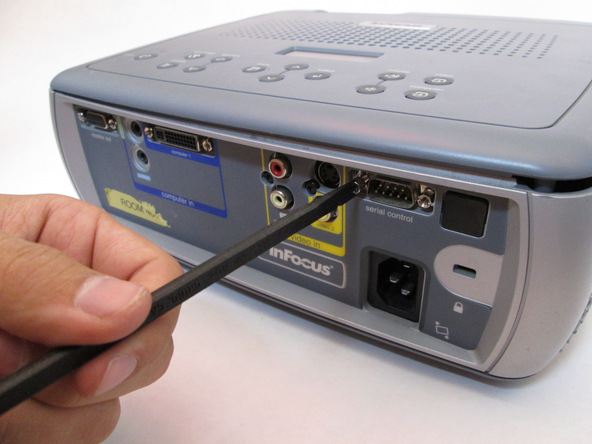
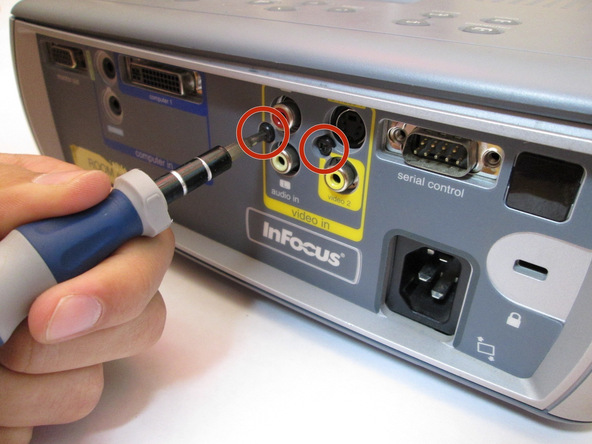
Image 1/3: Remove the 7mm metallic hex screws using the flat-head screwdriverImage 2/3: Remove the two black 10mm screws using the T10 Torx screwdriver head. The screws are located at the center of the back panel.Image 3/3: Remove the two black 10mm screws using the T10 Torx screwdriver head. The screws are located at the center of the back panel.


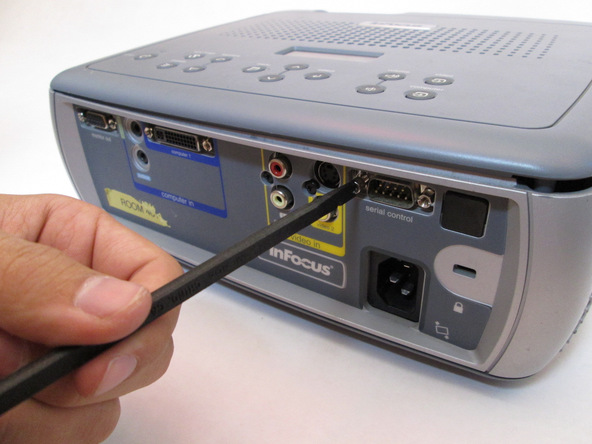
Flip the projector right-side up and turn it so that the back ports are facing you.


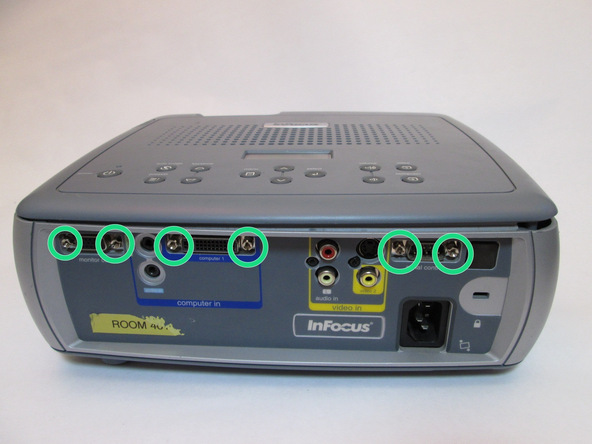
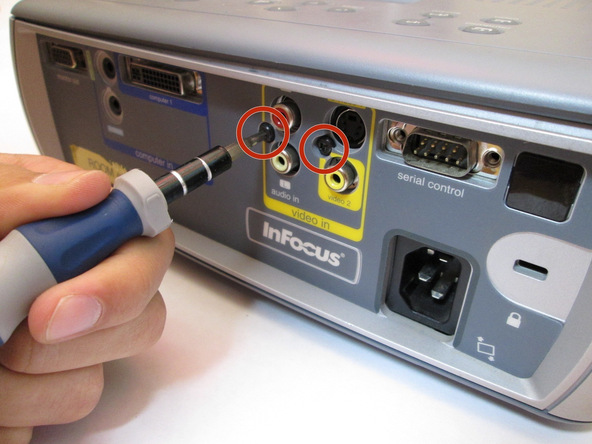
Remove the 7mm metallic hex screws using the flat-head screwdriver


Remove the two black 10mm screws using the T10 Torx screwdriver head. The screws are located at the center of the back panel.


Step 2
 
Image 1/2: Next, remove the two 10mm screws located near the lens side with the T10 Torx screwdriver head.Image 2/2: Flip the projector back over.


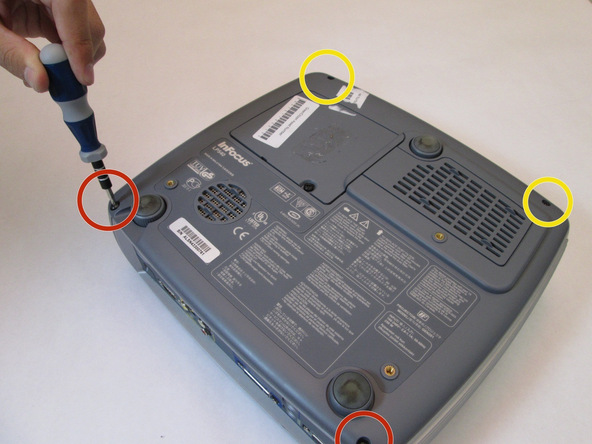
Remove the two 77mm screws that are located nearest to the back panel ports. Use the T10 Torx screwdriver head.


Next, remove the two 10mm screws located near the lens side with the T10 Torx screwdriver head.


Flip the projector back over.


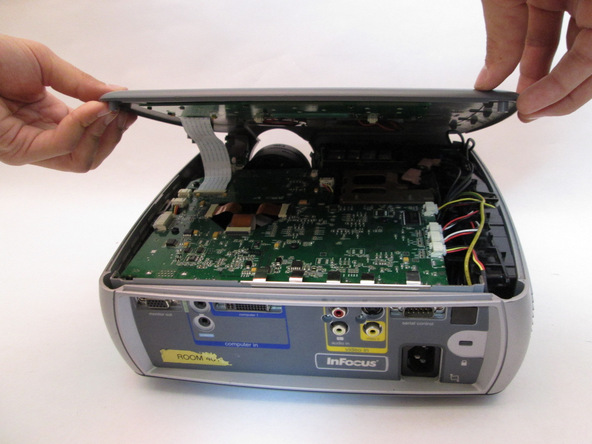
Then proceed to lifting up the main lid cautiously to avoid ripping the electrical strips.


Step 3

 
Image 1/2: Pull on the brown tabs located at the sides of the white plastic ribbon holder and pull the ribbon out.Image 2/2: Pull on the brown tabs located at the sides of the white plastic ribbon holder and pull the ribbon out.


Unplug the speaker wire from the circuit board by simultaneously squeezing the sides and pulling.


Pull on the brown tabs located at the sides of the white plastic ribbon holder and pull the ribbon out.


Step 4
 

Image 1/3: Remove the speaker wires from the white tabs.Image 2/3: Use the Phillips 0 screwdriver to remove the four 5.5 mm screws.Image 3/3: Carefully lift the speakers to remove them.


Place the top shell of the projector down.


Remove the speaker wires from the white tabs.


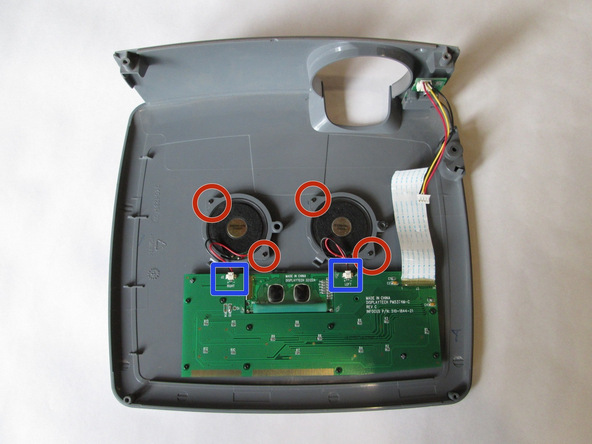
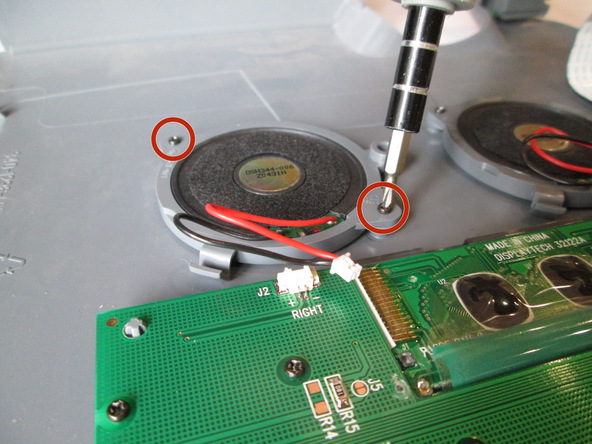
Use the Phillips 0 screwdriver to remove the four 5.5 mm screws.


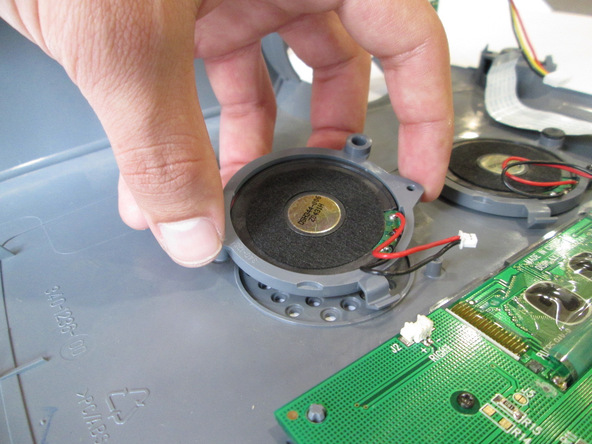
Carefully lift the speakers to remove them.

توسط

InFocus LP540 Projector Lens Replacement

Step 1 Main Board


Image 1/3: Remove the 7mm metallic hex screws using the flat-head screwdriver.Image 2/3: Remove the two black 10mm screws using the T10 Torx screwdriver head. The screws are located at the center of the back panel.Image 3/3: Remove the two black 10mm screws using the T10 Torx screwdriver head. The screws are located at the center of the back panel.
  •  

    Flip the projector right-side up and turn it so that the back ports are facing you.

     
  •  

    Remove the 7mm metallic hex screws using the flat-head screwdriver.

     
  •  

    Remove the two black 10mm screws using the T10 Torx screwdriver head. The screws are located at the center of the back panel.


Step 2

 
Image 1/2: Remove the two 77mm screws that are located nearest to the back panel ports. Use the T10 Torx screwdriver head.Image 2/2: Next, remove the two 10mm screws located near the lens side with the T10 Torx screwdriver head.
  •  

    Flip the projector over.

     
  •  

    Remove the two 77mm screws that are located nearest to the back panel ports. Use the T10 Torx screwdriver head.

     
  •  

    Next, remove the two 10mm screws located near the lens side with the T10 Torx screwdriver head.

     
  •  

    Flip the projector back over.

     
  •  

    Lift up the main lid cautiously to avoid ripping the electrical ribbons.


Step 3
 
Image 1/3: Pull on the brown tabs located at the sides of the white plastic ribbon holder and pull the ribbon out.Image 2/3: Pull the top cover back.Image 3/3: Pull the top cover back.
  •  

    Unplug the speaker wire from the circuit board by simultaneously squeezing the sides and pulling.

     
  •  

    Pull on the brown tabs located at the sides of the white plastic ribbon holder and pull the ribbon out.

     
  •  

    Pull the top cover back.


Step 4
 
Image 1/2: Image 2/2:
  •  

    Remove the cables from the white tabs.


Step 5
 
Image 1/3: Pull up on each metal tab located at the rear of the projector. There are 5 tabs.Image 2/3: Do not pull up on the metal tabs too hard or too fast because they can break easily.Image 3/3: Do not pull up on the metal tabs too hard or too fast because they can break easily.
  •  

    Remove the five 5mm screws located throughout the motherboard with the screwdriver. Use the T10 Torx screwdriver head.

     
  •  

    Pull up on each metal tab located at the rear of the projector. There are 5 tabs.

     
  •  

    Do not pull up on the metal tabs too hard or too fast because they can break easily.


Step 6

 
Image 1/3: Pull the ribbons out carefully and place them under the main board.Image 2/3: Carefully lift the entire main board up.Image 3/3: Carefully lift the entire main board up.
  •  

    Remove the three gold ribbons by flipping up the black taps that hold the ribbon in place.

     
  •  

    Pull the ribbons out carefully and place them under the main board.

     
  •  

    Carefully lift the entire main board up.


Step 7 Lens

 
Image 1/2: Image 2/2:
  •  

    Remove the two 10 mm screws using the Philips 0 screwdriver head.


Step 8
Image 1/2: Image 2/2:
  •  

    Carefully hold the lens from both ends and lift up simultaneously


توسط

InFocus LP540 Projector Lamp Replacement

Introduction

This guide will assist with replacing a non-functioning projector lamp, which is responsible for providing the light necessary for projection.

Step 1 Lamp

 
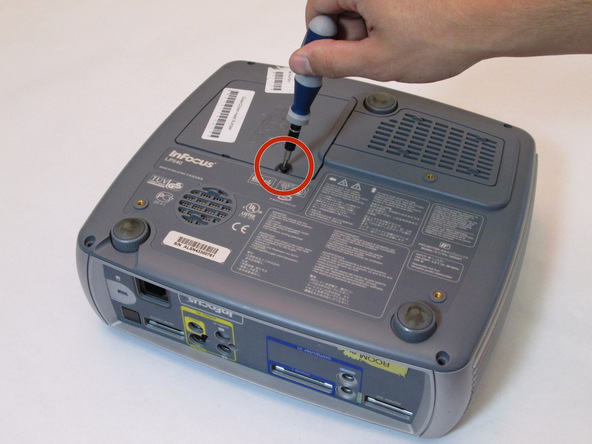
Image 1/2: Remove the black 7mm screw on the external case with a Phillips 2 screwdriver.Image 2/2: Remove the black 7mm screw on the external case with a Phillips 2 screwdriver.


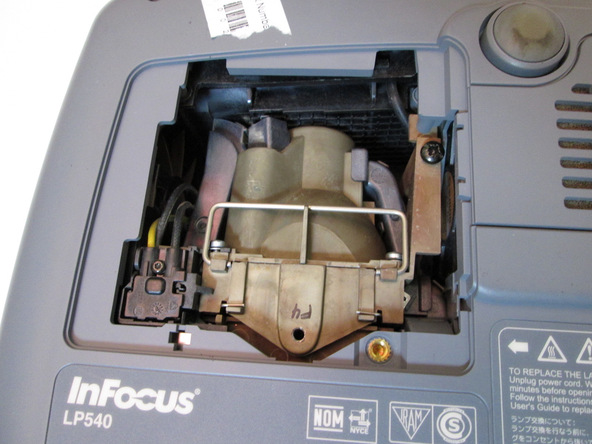
Place the projector on its back with the control buttons facing down.


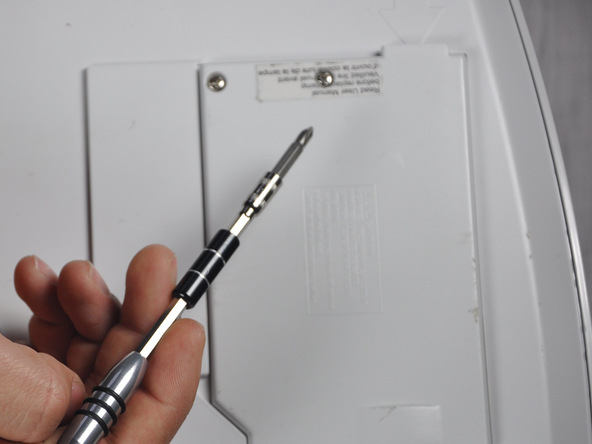
Remove the black 7mm screw on the external case with a Phillips 2 screwdriver.


Step 2
 
Image 1/1:


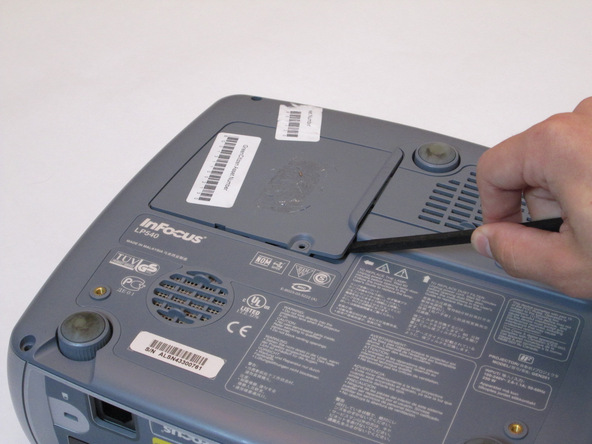
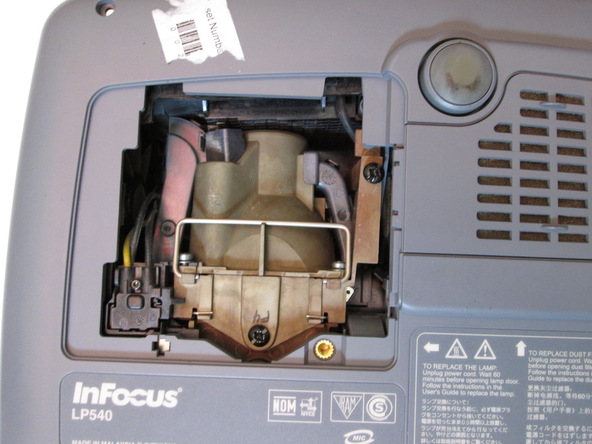
Use the plastic flat-head to remove the lamp lid.


Step 3

 
Image 1/2: Loosen but do not remove the 7mm screw near the upper right corner with the Phillips 2 screwdriver head.Image 2/2: Loosen but do not remove the 7mm screw near the upper right corner with the Phillips 2 screwdriver head.


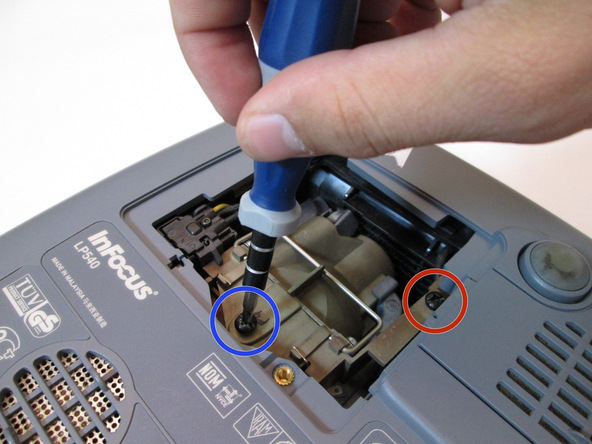
Remove the 7mm screw near the bottom center with a Philips 2 screwdriver head.


Loosen but do not remove the 7mm screw near the upper right corner with the Phillips 2 screwdriver head.


Step 4
 

Image 1/3: Unhook the handle so it can move freely.Image 2/3: Pull the handle straight up until the lamp is completely removed from projector.Image 3/3: Pull the handle straight up until the lamp is completely removed from projector.


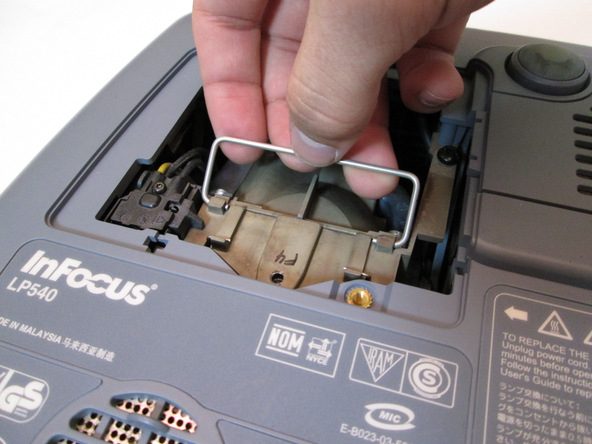
Grab the silver handle.


Unhook the handle so it can move freely.


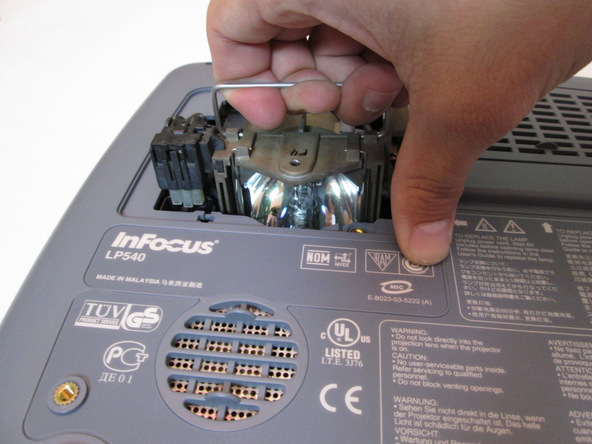
Pull the handle straight up until the lamp is completely removed from projector.

توسط

Optoma HD20 Light Bulb Replacement

Introduction

Use this guide to remove the light bulb from your Optoma HD20.

Step 1 Rear Panel

 
Image 1/2: Screws donImage 2/2: Screws don


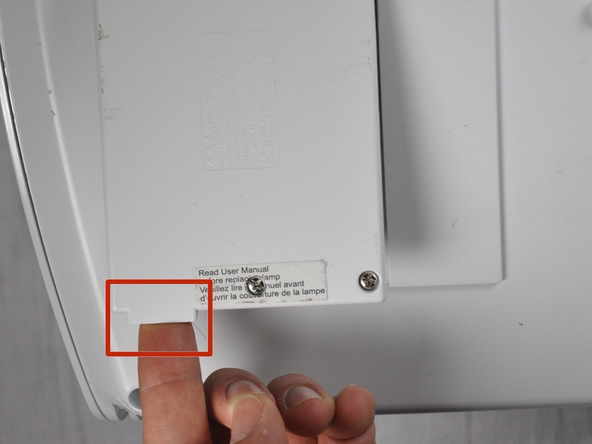
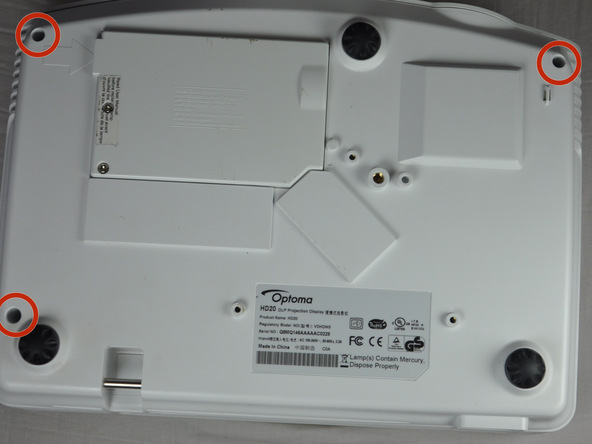
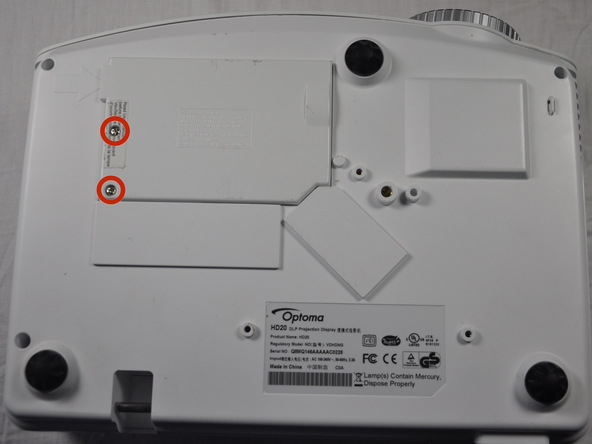
Use a Phillips #1 screwdriver to loosen the screws circled on the bottom of the device.


Screws don’t remove completely, only come out 5 mm.

Step 2

 
Image 1/1:


Lift panel off device.


Step 3 Light Bulb Casing

 
Image 1/1: Screws do not remove from black casing


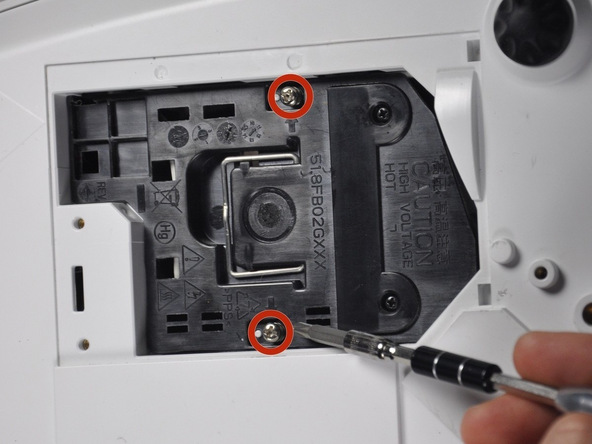
Loosen the two screws holding the black casing down with a Phillips #1 screwdriver.


Screws do not remove from black casing


Step 4

 
Image 1/3: Steps 5-9 may be unnecessary if replacement light bulb comes with housing.Image 2/3: Steps 5-9 may be unnecessary if replacement light bulb comes with housing.Image 3/3: Steps 5-9 may be unnecessary if replacement light bulb comes with housing.


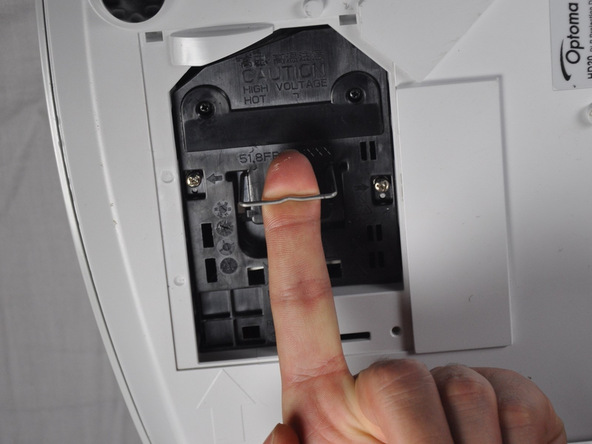
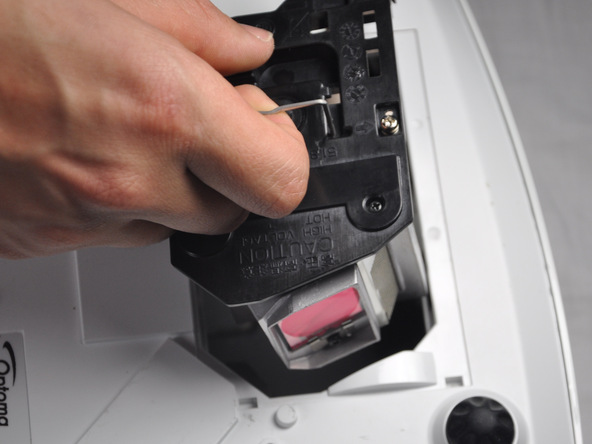
Once the screws are loosened pull out light bulb casing.


Steps 5-9 may be unnecessary if replacement light bulb comes with housing.


Step 5 Light Bulb

 
Image 1/1:


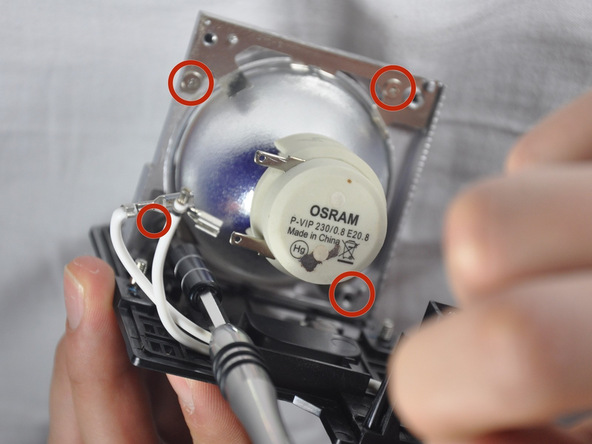
Remove the three 4.5 mm screws on the light bulb case.


Step 6
 
Image 1/1:


Carefully pull out the light bulb insulator once the screws have been removed so you do not break it.


Step 7

 
Image 1/1:


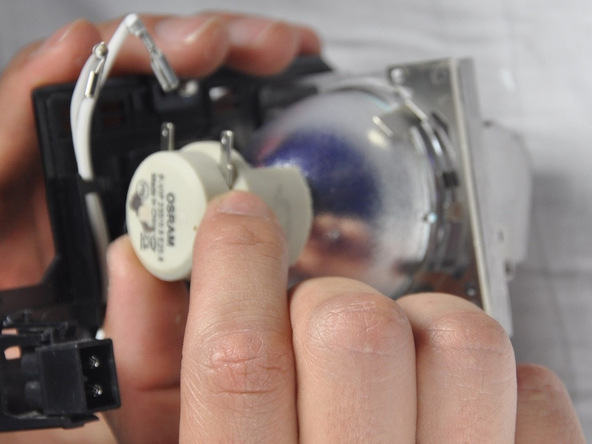
Gently pull the wires off the pins using metal tweezers.


Step 8

 
Image 1/1:


Remove the 4 screws using a Phillips #1 screwdriver to remove the final casing around the bulb.


Step 9


Image 1/2: Image 2/2:


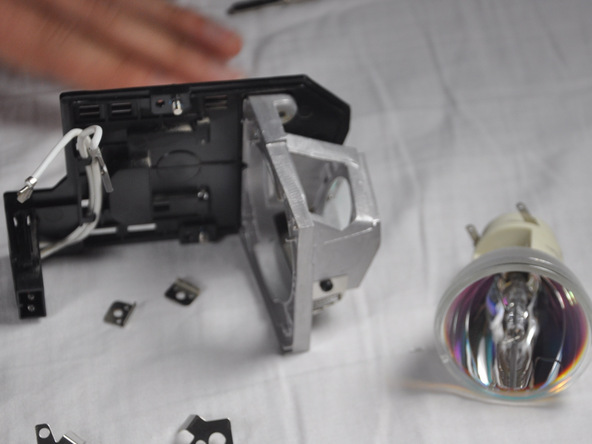
Pull the casing off and the gently pull out the light bulb. Then replace the bulb with your new light bulb.

توسط

Optoma HD20 Fan Replacement

Introduction

Use this guide to remove the fan from your Optoma HD20.

Step 1 Cover

 
Image 1/2: Remove focal cap by pulling it straight out.Image 2/2: Remove focal cap by pulling it straight out.


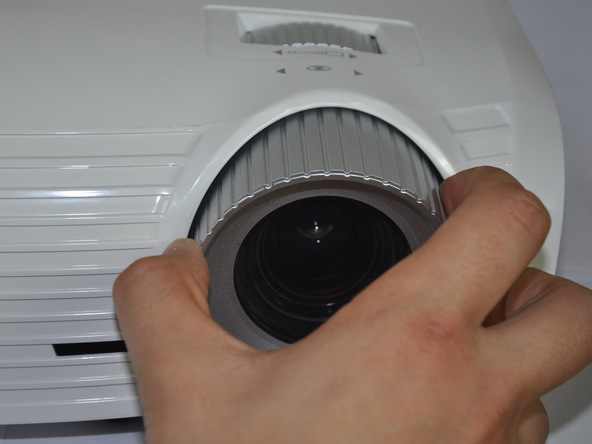
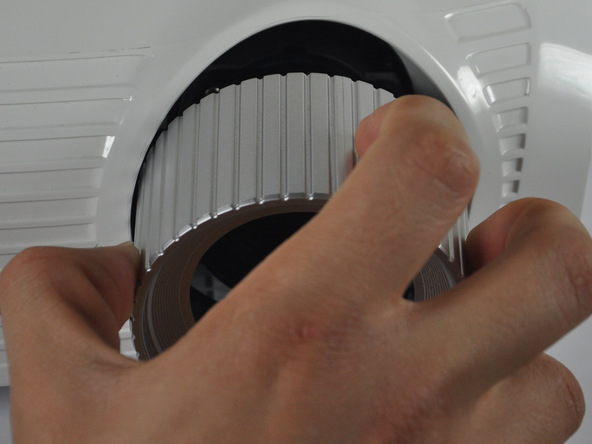
Twist focal cap clockwise until it is fully extended.


Remove focal cap by pulling it straight out.


One comment
 

Step 2

 
Image 1/1:


Use a Phillips #1 screwdriver to remove the three 7.5mm screws on the bottom of the device.

Step 3
 
Image 1/1: It is easiest to pry off the cover from the back side just above the HDMI ports.


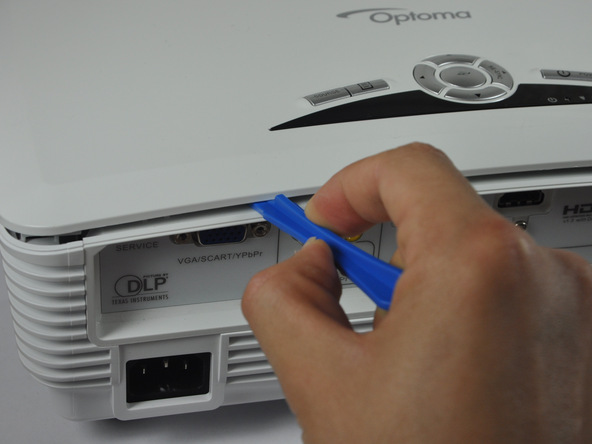
Use a plastic opening tool to gently pry the top cover off of the device.


It is easiest to pry off the cover from the back side just above the HDMI ports.

Step 4
 
Image 1/1: Remove the ribbon by disconnecting it from the main circuit board.


When removing the cover, be cautious of the ribbon connecting the top buttons to the main circuit board. The ribbon must be disconnected before proceeding.


Remove the ribbon by disconnecting it from the main circuit board.


Lift up the clip holding it down and pull the ribbon out.


2 comments
 

Step 5 Fan

 
Image 1/1:


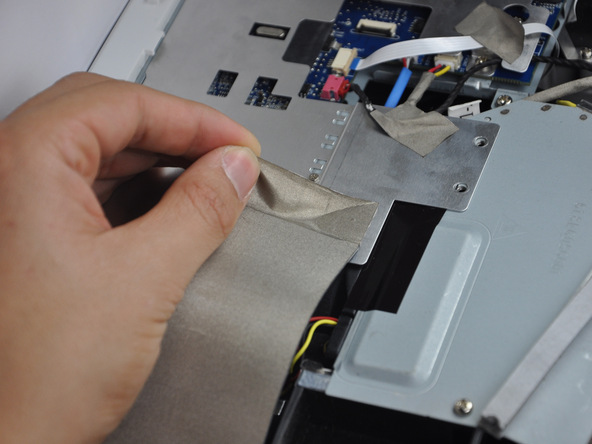
Peel off the tape that is holding the metal casing down.

Step 6

 
Image 1/2: Use a Phillips #0 screwdriver to unscrew the three 2.5 mm screws to be able to remove the metal casing.Image 2/2: Use a Phillips #0 screwdriver to unscrew the three 2.5 mm screws to be able to remove the metal casing.


Use a Phillips #1 screwdriver to unscrew the nine 4.5mm screws.


Use a Phillips #0 screwdriver to unscrew the three 2.5 mm screws to be able to remove the metal casing.


Step 7
 
Image 1/1:


Remove the metal casing by lifting it up off of the circuit board.


Step 8

 
Image 1/1:


Unplug the six wires stemming from the circuit board.


Step 9
 
Image 1/1:


Use a Philips #1 screwdriver to remove the four 4.5 mm screws


Step 10

 
Image 1/1:


Remove three 4.5 mm screws using Philips #1 screwdriver


Step 11

 
Image 1/1:


Remove the final two 4.5 mm screws connected to the motherboard using a 5 mm nut driver


Step 12

 
Image 1/1: Lift up and remove plastic backing


Slightly rotate motherboard clockwise to prevent ports from getting caught on the plastic backing


Lift up and remove plastic backing


Step 13
 
Image 1/1: Do this very carefully because there is still one cable attached.


Lift up the motherboard and take out the metal container once screws are removed.


Do this very carefully because there is still one cable attached.


Step 14
 
Image 1/1: To remove, pinch both sides of the connector and pull it away from the circuit board.


Unplug the white connector underneath the right side of the circuit board.


To remove, pinch both sides of the connector and pull it away from the circuit board.


Step 15

 
Image 1/2: Image 2/2:


Use a Phillips #1 screwdriver to remove four 5 mm screws to take out the fan.


Step 16


Image 1/2: Image 2/2:


Remove fan by first pulling it away from the metal housing unit and then up out of the device

توسط

Optoma HD20 Focal Lens Replacement

Introduction

Use this guide to remove the focal lens from your Optoma HD20.

Step 1 Cover

 
Image 1/2: Remove focal cap by pulling it straight out.Image 2/2: Remove focal cap by pulling it straight out.


Twist focal cap clockwise until it is fully extended.


Remove focal cap by pulling it straight out.


One comment
 

Step 2

 
Image 1/1:


Use a Phillips #1 screwdriver to remove the three 7.5mm screws on the bottom of the device.


Step 3
 
Image 1/1: It is easiest to pry off the cover from the back side just above the HDMI ports.


Use a plastic opening tool to gently pry the top cover off of the device.


It is easiest to pry off the cover from the back side just above the HDMI ports.


Step 4
 
Image 1/1: Remove the ribbon by disconnecting it from the main circuit board.


When removing the cover, be cautious of the ribbon connecting the top buttons to the main circuit board. The ribbon must be disconnected before proceeding.


Remove the ribbon by disconnecting it from the main circuit board.


Lift up the clip holding it down and pull the ribbon out.


2 comments
 

Step 5 Focal Lens

 
Image 1/1:


Use a Phillips #1 screwdriver to unscrew the small black 2 mm screw on the side of the focal lens.

 
Step 6
 

Image 1/1:


Remove the focal lens by twisting it clockwise until it comes off.

توسط

Sony Digital Projector VPL-ES1 Teardown

Introduction

A multimedia LCD projector from Sony, the VPL-ES1.

This Teardown may help you fix/ replace many items that could possibly go wrong with this unit – Replacing the lamp, to changing the Automatic Lens Door and so on.

It’s amazing just ho much they fit into these things- reminds me of what i like to call Chinese Tetris. Although Sony is a very Japanese Co.

-On to the fun-

This teardown is not a repair guide. To repair your Sony Digital Projector VPL-ES1, use our service manual.

Step 1 Sony Digital Projector VPL-ES1 Teardown

 
Image 1/3: Image 2/3: Image 3/3:


The Front view, Side view w/ Power input, Audio in, Coax in, VGA in and VGA out. Along with Zoom and Focus Dials


Step 2

 
Image 1/2: First we are going to remove the Lamp by removing the screw in the first image, and opening and removing the door to the lampImage 2/2: Then we unscrew the two screws on the lamp. they do not completely disconnect from the lamp. So they will remain attached after unscrewing them.


The Bottom View


First we are going to remove the Lamp by removing the screw in the first image, and opening and removing the door to the lamp


Then we unscrew the two screws on the lamp. they do not completely disconnect from the lamp. So they will remain attached after unscrewing them.


Then lift up on Lamp Handle to remove Lamp from projector assmebly

Step 3

 
Image 1/3: Image 2/3: Image 3/3:


A few pictures of the Lamp Removed from the Projector.

 
Step 4
 
Image 1/2: Image 2/2:


Then simply pry up on the intake air door and remove


Step 5

 
Image 1/2: These are the long screws in the second photo hereImage 2/2: These are the long screws in the second photo here


At this point we will remove the six screws located on the underside of the unit.


These are the long screws in the second photo here


Step 6

 
Image 1/3: Pull ribbon cable from mainboard. Place top of unit to the side of your work area.Image 2/3: First Look at the InsideImage 3/3: First Look at the Inside


Flip the unit over carefully and pry the case off working around the edges. Take note there is a ribbon cable that runs from the outer control panel to the mainboard.


Pull ribbon cable from mainboard. Place top of unit to the side of your work area.


First Look at the Inside


One comment
 

Step 7

 
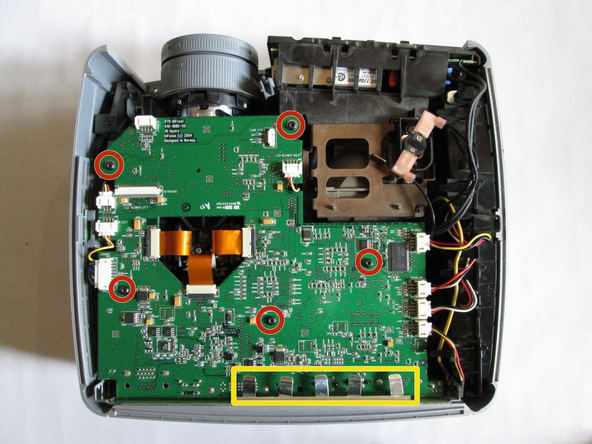
Image 1/3: There is one connector from the mainboard to the little blue board in the bottom righthand corner that is connected on the underside of the mainboard. Just disconnect this one from at the blue board.Image 2/3: You will find that the two connectors labeled in a yellow rectangle are not connected to anything leading me to believe that this mainboard may be used with other model projectors as well.Image 3/3: Remove the five screws marked in the red Circles from the mainboard.


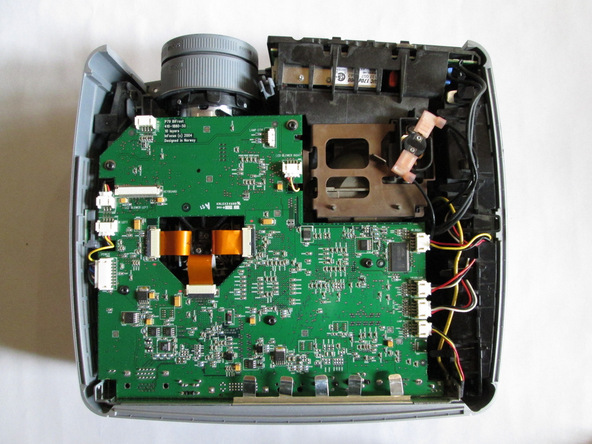
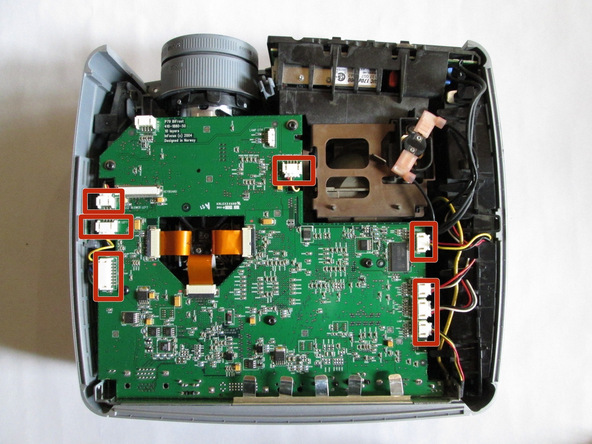
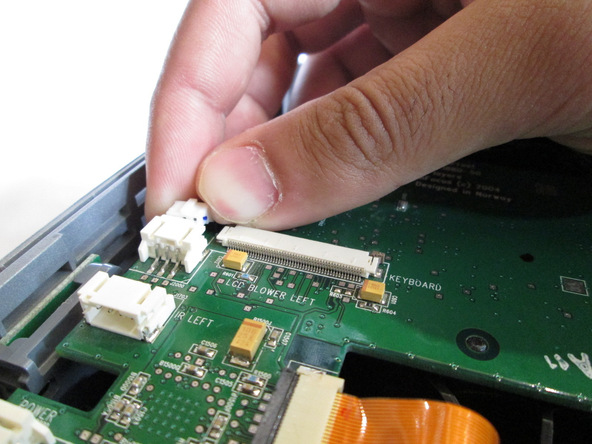
Now you will remove all other connectors from the outer parts of the mainboard. as marked in the Red Rectangles. Gently, pull them out of their connection place.


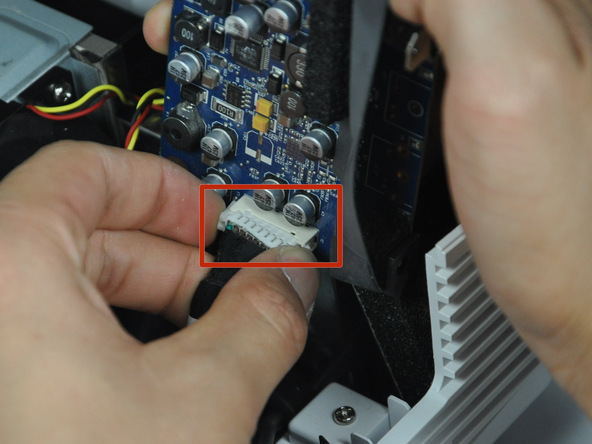
There is one connector from the mainboard to the little blue board in the bottom righthand corner that is connected on the underside of the mainboard. Just disconnect this one from at the blue board.


You will find that the two connectors labeled in a yellow rectangle are not connected to anything leading me to believe that this mainboard may be used with other model projectors as well.


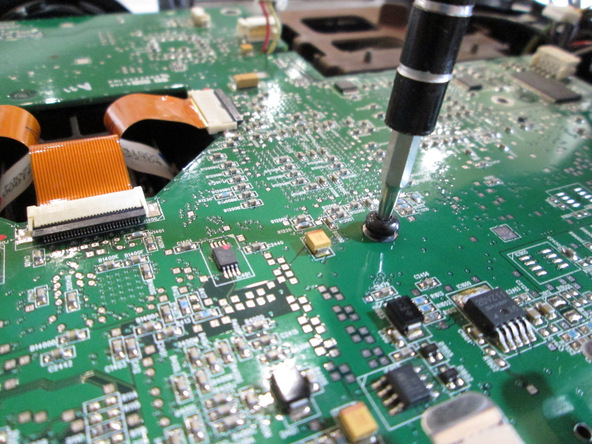
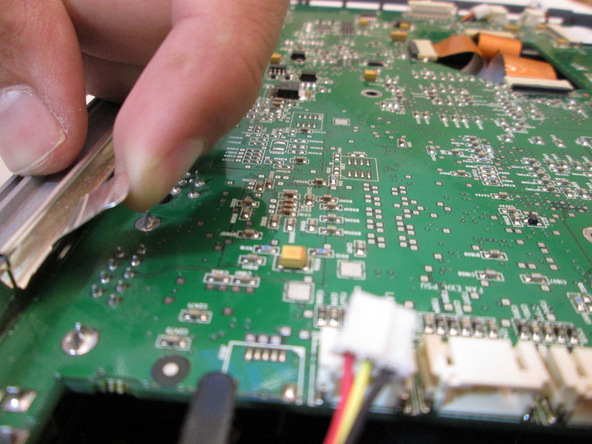
Remove the five screws marked in the red Circles from the mainboard.


In the Third image you will find the LCD Ribbon Cable on the Center of the Board. You will remove the three of the cables by gently pulling up on either side of the tiny brown connectors attching them to the board


Step 8

 
Image 1/2: Now the Mainboard has been removedImage 2/2: Now the Mainboard has been removed


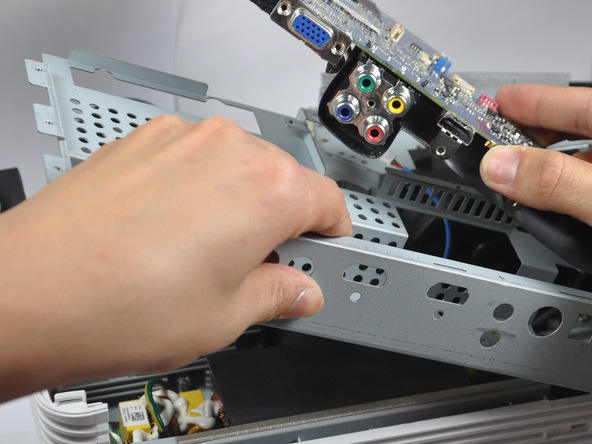
Now to remove the mainboard. Gently pry outwards the Left side of the casing and lift the board up out of the Unit. Being carefull to watch the input connections near the side of the case.


Now the Mainboard has been removed


Step 9

 
Image 1/2: You can opt to remove this little board from a fan shroud but i chose to leave it attachedImage 2/2: I removed it to show you what it looks like anyway.


have a look at some of our main components. The LCD and Prism connected to the Lens as well as some of the cooling Channels.


You can opt to remove this little board from a fan shroud but i chose to leave it attached


I removed it to show you what it looks like anyway.


I removed it to show you what it looks like anyway.

 
Step 10
 
Image 1/3: This appears to be something that holds the board up for some reason that is beyond me?Image 2/3: And a picture of it removedImage 3/3: And a picture of it removed


Remove screw marked in red


This appears to be something that holds the board up for some reason that is beyond me?


And a picture of it removed


Step 11

 
Image 1/3: Pull out the connectorImage 2/3: Pull out the connectorImage 3/3: Pull out the connector


Remove the two screws that run from the power supply to the lamp


Pull out the connector


Step 12
 
Image 1/3: Remove Fan ShroudImage 2/3: Now lift up and remove the fanImage 3/3: Now lift up and remove the fan


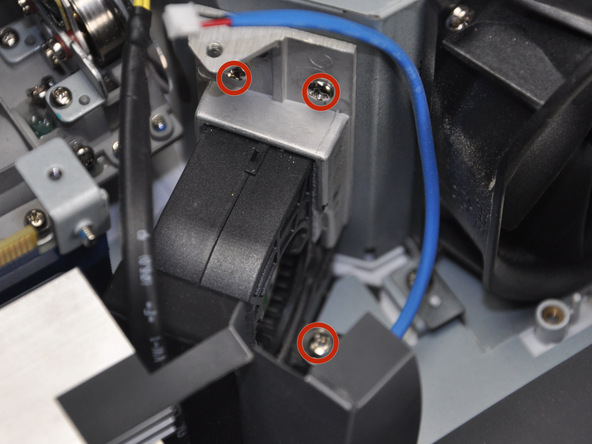
There are three Screws to be removed from the fan shroud in this step


Remove Fan Shroud


Now lift up and remove the fan


Step 13

 
Image 1/3: Image 2/3: Image 3/3:


To remove the side panel of the case- gently pry around the corners until removed


Step 14

 
Image 1/3: Now we Remove the 5 screws of the Mirror/LCD/Lens assemblyImage 2/3: And from the left side lift up on the Projection assmebly to remove from the unitImage 3/3: And from the left side lift up on the Projection assmebly to remove from the unit


A look at the side and rear panel of the case removed


Now we Remove the 5 screws of the Mirror/LCD/Lens assembly


And from the left side lift up on the Projection assmebly to remove from the unit


Step 15

 
Image 1/3: Next remove the fan Channel by unscrewing one screw as labeled in red circleImage 2/3: This piece i find rather interesting considering the job of the one fan is to route air particularly to the underside of the three LCD Screens for coolingImage 3/3: This piece i find rather interesting considering the job of the one fan is to route air particularly to the underside of the three LCD Screens for cooling


Projection assembly removed


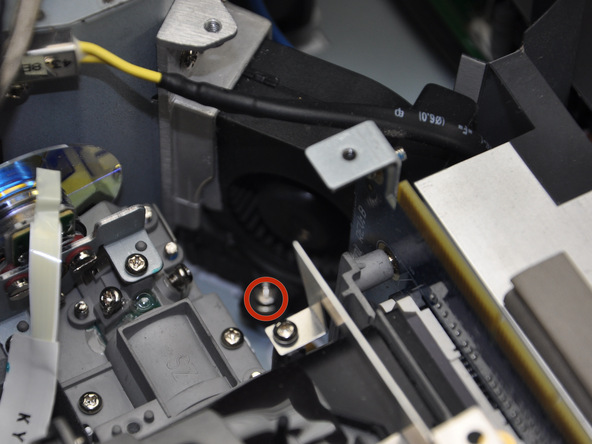
Next remove the fan Channel by unscrewing one screw as labeled in red circle


This piece i find rather interesting considering the job of the one fan is to route air particularly to the underside of the three LCD Screens for cooling


Step 16
 
Image 1/3: Remove simply by lifting out out placement nicheImage 2/3: This, I found is a neat little cutoff switch. Being that the little black switch is located at the underside of the unit in the Lamp assembly door. If the Switch is not depressed that means the door is not closed and power will not be applied to the lamp-Safety FeatureImage 3/3: This, I found is a neat little cutoff switch. Being that the little black switch is located at the underside of the unit in the Lamp assembly door. If the Switch is not depressed that means the door is not closed and power will not be applied to the lamp-Safety Feature


Now there will be a tiny circuit switch upright after removing the fan channel.


Remove simply by lifting out out placement niche


This, I found is a neat little cutoff switch. Being that the little black switch is located at the underside of the unit in the Lamp assembly door. If the Switch is not depressed that means the door is not closed and power will not be applied to the lamp-Safety Feature


Step 17

 
Image 1/3: We must remove the Zoom/Focus Dials first in order to proceed. Remove the one screw as labeled in the red circle. and gently remove the two dials out togetherImage 2/3: Next to remove the screw holding the Autolens Cap to the rest of the unit.Image 3/3: Next to remove the screw holding the Autolens Cap to the rest of the unit.


Now we are going to look at removing the Automatic Lens door/Cap and Zoom/Focus Dials


We must remove the Zoom/Focus Dials first in order to proceed. Remove the one screw as labeled in the red circle. and gently remove the two dials out together


Next to remove the screw holding the Autolens Cap to the rest of the unit.


Step 18
 
Image 1/3: The second image is just a view of what is left on the Unit from the left hand side.Image 2/3: I am not going to remove the power supply nor the fan under it but i will give you these photos to admire. Power supplys can be dangerous people! So once again i will leave that as is.Image 3/3: This 3rd pic has another interesting Fan channel from the left underside of the Power supply to the Lamp assembly in two different chutes.


Now you can remove the Autolens cap with motor attached( on the right)


The second image is just a view of what is left on the Unit from the left hand side.


I am not going to remove the power supply nor the fan under it but i will give you these photos to admire. Power supplys can be dangerous people! So once again i will leave that as is.


This 3rd pic has another interesting Fan channel from the left underside of the Power supply to the Lamp assembly in two different chutes.


Step 19
 
Image 1/3: Shoot for the exhaust duct LUkE!Image 2/3: The Beams of light get refracted by mirrors past the Lamp to focus three beams of light to the these LCD Screens and then onto the Prism which carries the image onto the lens - through the lens and onto the Wall / Ceiling / Barn of your choosingImage 3/3: The Beams of light get refracted by mirrors past the Lamp to focus three beams of light to the these LCD Screens and then onto the Prism which carries the image onto the lens - through the lens and onto the Wall / Ceiling / Barn of your choosing


Now onto the LCD Assembly – The heart of this projector.


Shoot for the exhaust duct LUkE!


The Beams of light get refracted by mirrors past the Lamp to focus three beams of light to the these LCD Screens and then onto the Prism which carries the image onto the lens – through the lens and onto the Wall / Ceiling / Barn of your choosing


Step 20

 
Image 1/3: The lens is removed by unscrewing the 4 screws located on the outer corners of the lens fixture.Image 2/3: New line.And a look at the lens by itself and it Zoom / Focus Ring DialsImage 3/3: I am not going to dissasemble the lens-for good measure. Being I'm a not a Leica Tech. - it's most likely not one of their lenses anyway.


The underside of the LCD / Lens Assembly to show you the Cooling ducts leading up to the LCD panels. Neat huh?


The lens is removed by unscrewing the 4 screws located on the outer corners of the lens fixture.


New line.And a look at the lens by itself and it Zoom / Focus Ring Dials


I am not going to dissasemble the lens-for good measure. Being I’m a not a Leica Tech. – it’s most likely not one of their lenses anyway.


Step 21
 
Image 1/3: To remove the LCD innards unscrew the two screws marked in RED circlesImage 2/3: DO NOT REMOVE the screw marked in yellow - this keeps the color lenses in place between the lcd's and the Prism (VERY IMPORTANT)Image 3/3: Now, if needed you can remove the LCD assembly / Prism from the rest of the unit by simply pulling it out gently


A cool look inside the assembly minus the lens


To remove the LCD innards unscrew the two screws marked in RED circles


DO NOT REMOVE the screw marked in yellow – this keeps the color lenses in place between the lcd’s and the Prism (VERY IMPORTANT)


Now, if needed you can remove the LCD assembly / Prism from the rest of the unit by simply pulling it out gently


Step 22
 

Image 1/2: Then a look at all of the Components. The Completed disassemblyImage 2/2: Then a look at all of the Components. The Completed disassembly


A shot of the LCD Assembly, Lens, Lamp and Mainboard.


Then a look at all of the Components. The Completed disassembly

سایت فروشگاهی