بستن

safeland.ir@gmail.com       +98 21 88 81 48 12

Tag Archive for: تعمير ديتا پروژکتور

توسط

Optoma HD20 Color Wheel Replacement

Introduction

Use this guide to remove the color wheel from your Optoma HD20.

Step 1 Cover

 
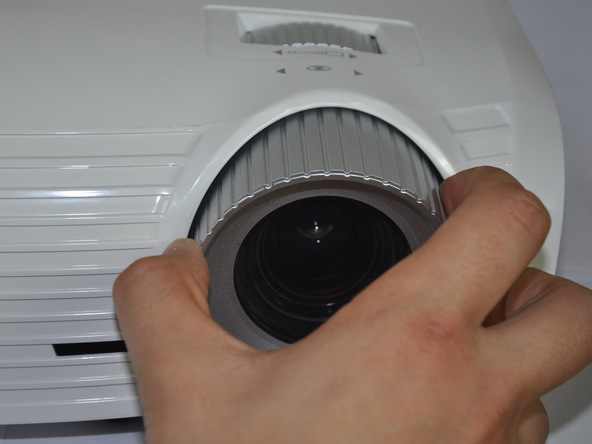
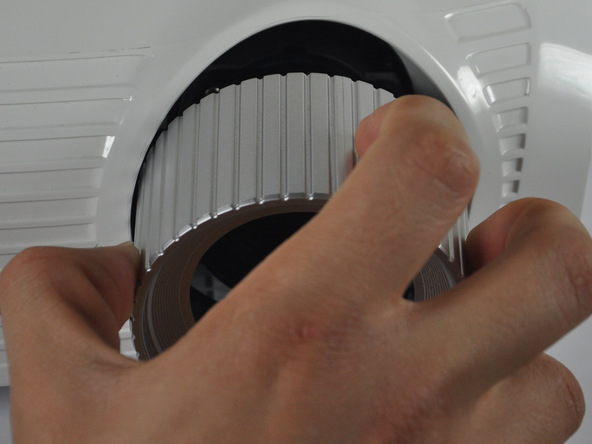
Image 1/2: Remove focal cap by pulling it straight out.Image 2/2: Remove focal cap by pulling it straight out.


Twist focal cap clockwise until it is fully extended.


Remove focal cap by pulling it straight out.


One comment
 

Step 2

 
Image 1/1:


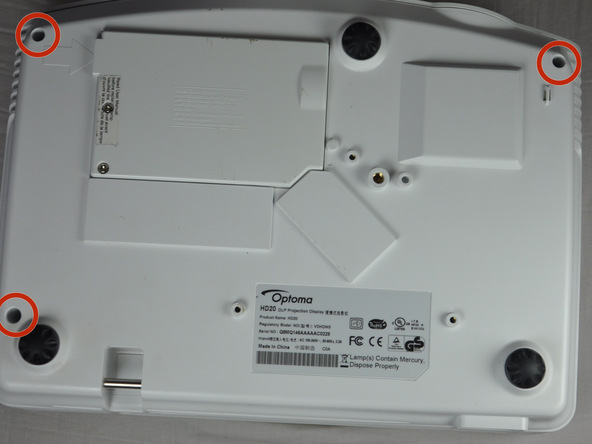
Use a Phillips #1 screwdriver to remove the three 7.5mm screws on the bottom of the device.


Step 3

 
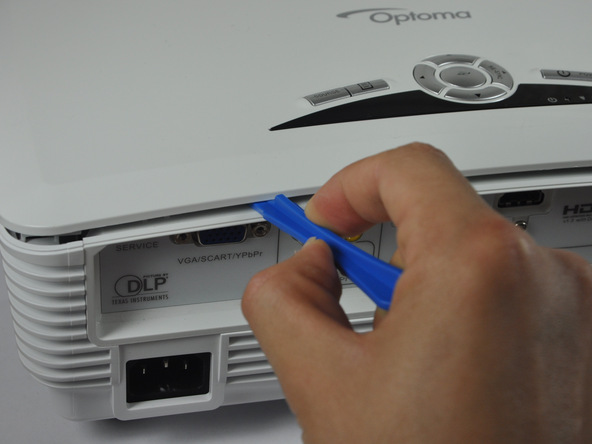
Image 1/1: It is easiest to pry off the cover from the back side just above the HDMI ports.


Use a plastic opening tool to gently pry the top cover off of the device.


It is easiest to pry off the cover from the back side just above the HDMI ports.

 
Step 4
 
Image 1/1: Remove the ribbon by disconnecting it from the main circuit board.


When removing the cover, be cautious of the ribbon connecting the top buttons to the main circuit board. The ribbon must be disconnected before proceeding.


Remove the ribbon by disconnecting it from the main circuit board.


Lift up the clip holding it down and pull the ribbon out.


2 comments
 

Step 5 Color Wheel

 
Image 1/1:


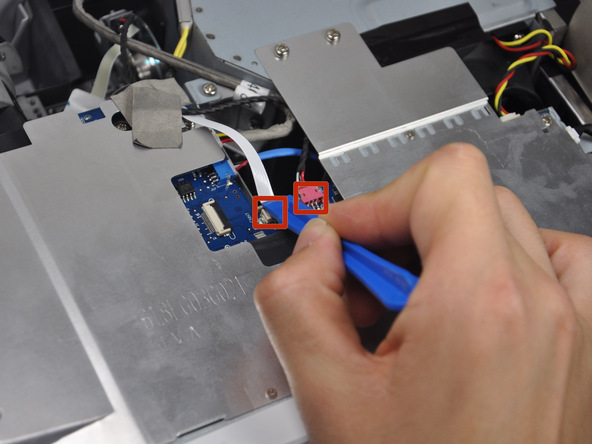
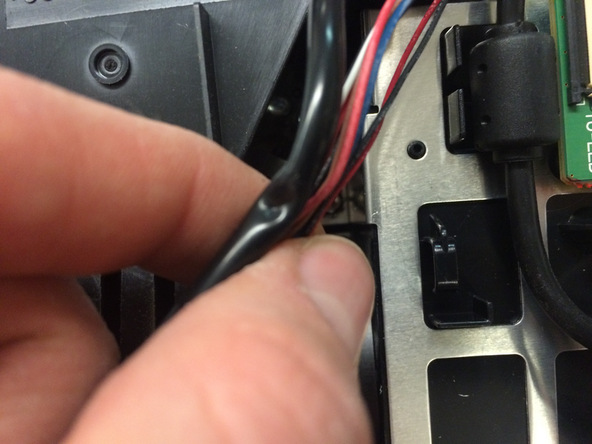
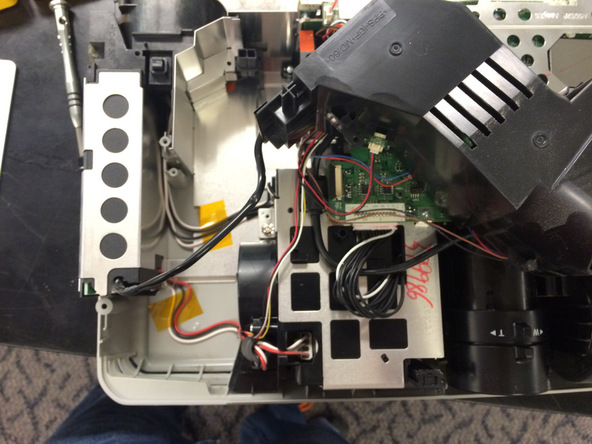
Use the plastic opening tool to remove the wiring.


Step 6

 
Image 1/1:


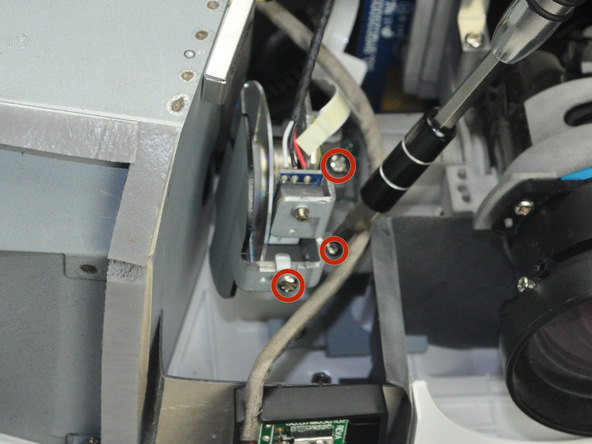
Use a Phillips #1 screwdriver to remove the 5.5 mm screws around the pin wheel.


Step 7

 
Image 1/1:


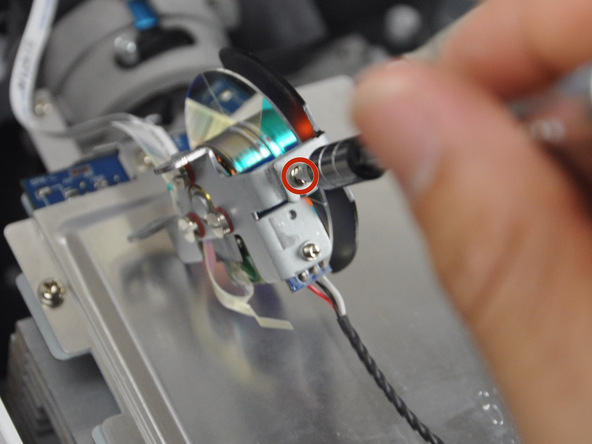
Use a Phillips #1 screwdriver to remove 1 more 5.5 mm screw.


Step 8
 
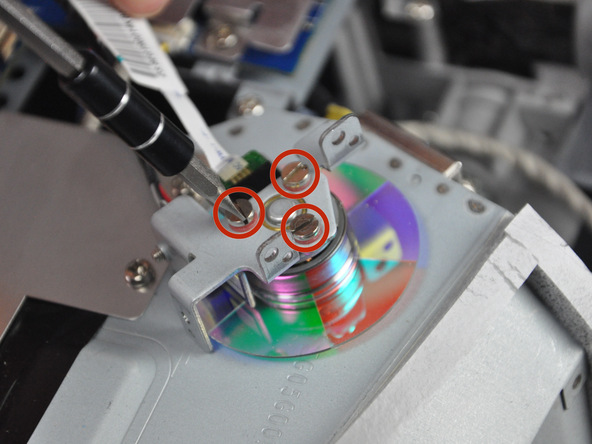
Image 1/1: Do this carefully because these screws do not pull out.


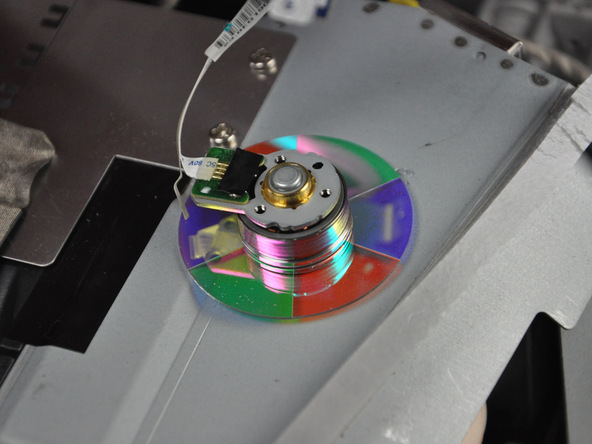
Using a flat head screw driver unscrew the back part to release the color wheel.


Do this carefully because these screws do not pull out.


Step 9


Image 1/1:


Once unscrewed remove the color wheel and replace the part.

توسط

Sharp PG-A10X Thermal Fuse Replacement

Introduction

Your projector stops working abruptly, and the lamp goes out. No indicator lights showing either. You have either inadvertently pulled out the plug or the thermal protection fuse has popped. This procedure shows how to repair this.

Step 1 Open the case

 
Image 1/3: Image 2/3: Image 3/3:


We are assuming that since you are using “iFixIt” then you will want to ignore the warning about electrical shocks. Unplug the projector from the power (no danger of shocks now) and remove the six 0.5″ phillips head screws.

Step 2 Remove the lamp access panel

 
Image 1/3: Image 2/3: Image 3/3:
 

Although not exactly necessary for this procedure, it’s a good idea to remove the lamp access panel too at this point. Loosen the captive phillips screw at the edge of this cover (it’s black) and then pressing the catch with your finger, open the cover like a door.

Step 3 Remove two screws on the back

 
Image 1/3: Image 2/3: Image 3/3:


There are two more screws to remove, the two chrome-plated phillips screws in the back-panel near the input sockets. There is another screw like these near the black power socket–it is not necessary to remove that one. Keep these two screws separate from the six longer ones you just removed in the previous step.

Step 4 Pry the case apart

 
Image 1/3: Image 2/3: Image 3/3:


Turn the projector over (right side up). If you have not already removed the six screws from the holes (unscrewed in step one) then they should fall on the table now. Pick them up and keep track of them. With a flat-blade screwdriver (or a butter-knife) carefully work around the match joint between the case halfs until the top is free (it clips)

Step 5 Disconnect the thermal fuse (1)

 
Image 1/3: Image 2/3: Image 3/3:
 

The part we are replacing, the thermal fuse, is a silver button with one black and one white wire connected to it. Both of these plug into the chassis at this red connector. Remove the clear plastic cover with a flat screwdriver.

Step 6 Loosen the circuit board (1)

 
Image 1/3: Image 2/3: Image 3/3:


There are more than four screws holding down the circuit board. You only need to remove four of them–just enough to raise the corner of the board that is over the thermal fuse wires. Two of these screws also have round wire-lugs under them: the one on the lower left and the one in the top middle.

Step 7 Loosen the circuit board (2)

 
Image 1/2: Image 2/2:


One of the screws, the back one in the middle, is larger than the others. Just remember what holes they came out of to put them back. Four screws: 1) front left corner, 2) back edge in the middle, 3) one halfway between these two, 4) one next to the lens near the control buttons. The circuit board does not come off.


Step 8 Remove the thermal fuse (1)
 
Image 1/3: Image 2/3: Image 3/3:


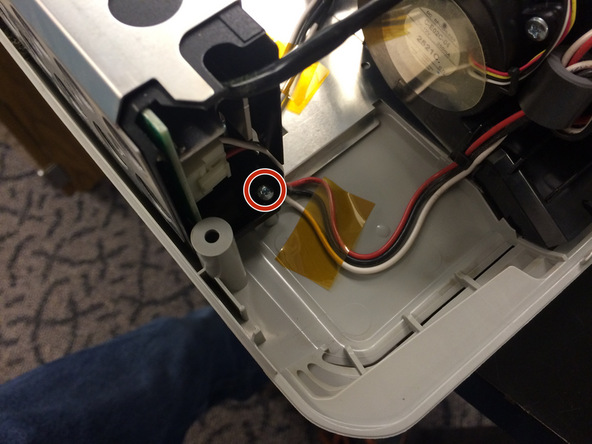
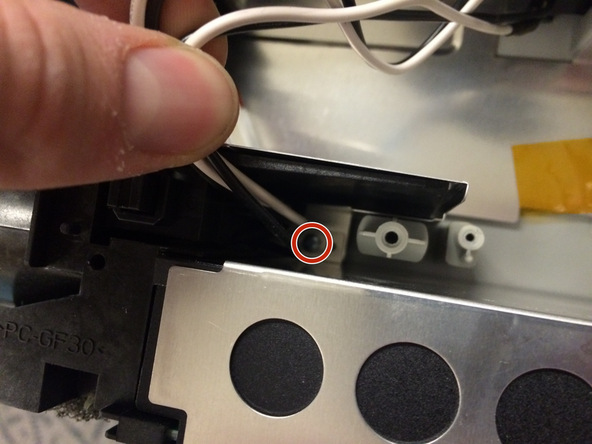
Now you can slide the red connector for the fuse back off it’s socket: use a flat blade screwdriver to release the catch. Also, remove the single screw holding the fuse assembly itself (The business end) to the black fan-box. Keep your screws organized!

Step 9 Remove the thermal fuse (2)

 
Image 1/3: Image 2/3: Image 3/3:
 

Gently lift the circuit board front left corner and work the black and white wires of the thermal fuse out from beneath it. Note that they go under the circuit board but over the black connecting wire on the corner screw hole, and under the wire harness between the circuit board and chassis. No need to remove the wire harness.


Step 10 “FIX” the thermal fuse!

 
Image 1/3: Image 2/3: Image 3/3:
 

This is the cool part. You can replace the thermal fuse you just removed with a new one, OR it is possible to “re-set” the fuse for another go. Hold the assembly by the plug in one hand, set the button on a padded surface on the table (silver side down) raise it up about 18″ and SLAP the button part DOWN on the pad. One “whap”.


Step 11 Replace the thermal fuse

 
Image 1/3: Image 2/3: Image 3/3:


Whether you fixed the fuse with a “whap” or whether you bought a new part assembly (part #QCNW-B110WJZZ, Bi-metal PCB–Google it, you’ll find one like the one in the picture) snake the fuse wires and connector back under the wire harness, over the black wire and under the corner of the circuit board (gently pry the corner of the board up).

Step 12 Connect the thermal fuse

 
Image 1/3: Image 2/3: Image 3/3:
 

Once you have snaked the black and white wires for the thermal fuse under the board, over the black wire and under the board wiring harness, you can slide the connector back onto the prongs. Push it till it clicks.

Step 13 Attach the thermal fuse

 
Image 1/3: Image 2/3: Image 3/3:


The business-end of the thermal fuse goes back on the black fan housing. One ear slips under a black plastic clip. The other ear is screwed down with the screw you removed back in step 9.

Step 14 Re-fasten the circuit board

 
Image 1/3: Image 2/3: Image 3/3:


Replace the four screws you removed from the circuit board in steps 6 and 7. Remember, one of the (under the green wire) is a bigger screw than the others. The front left corner one, near the thermal fuse, also holds down a black wire lug. Replace the clear plastic cover over the red connector to the thermal fuse too.


Step 15 Tidy up and close the box

 
Image 1/3: Image 2/3: Image 3/3:
 

Now is a good time to blow some dust away from the vents. There is an intake vent in the back and on the side, and also a couple fans. Use compressed air. Place the top case carefully over the bottom case and work it into place all the way around: it snaps into place.


Step 16 Replace the case screws

 
Image 1/3: Image 2/3: Image 3/3:
 

Replace the two plated screws at the connector panel on the back, and then turn the projector upside-down and replace the six case screws in the deep holes on the bottom. Tight, but not too tight–remember this is plastic.


Step 17 Clean the filter

 
Image 1/3: Image 2/3: Image 3/3:
 

The lamp access panel has a foam air filter in it that is easy to clean. It’s also easy to tear! So be careful, remove the foam from the access panel. You can carefully vacuum the dirt with a vacuum cleaner, blow it with compressed air, or even wash it with water and dry it if you like. Just be careful not to tear it. Put it back and close the lid.


Step 18 Plug it in and try it out

Image 1/3: Image 2/3: Image 3/3:


Now you can plug it in. The little indicator lights should light up. If they light up green, steady or blinking, one or two, just let it be. The lamp will eventually come on, and the fan too. Press the “off” button to shut-down as usual after the lamp comes on. If a red “power” indicator comes on, that’s fine too. You can press the “on” button.

توسط

Optoma HD20 Air Filter Replacement

Introduction

  • Use this guide to remove the air filter from your Optoma HD20.

Step 1 Cover

 
Image 1/2: Remove focal cap by pulling it straight out.Image 2/2: Remove focal cap by pulling it straight out.


Twist focal cap clockwise until it is fully extended.


Remove focal cap by pulling it straight out.


One comment
 

Step 2

 
Image 1/1:


Use a Phillips #1 screwdriver to remove the three 7.5mm screws on the bottom of the device.

 
Step 3
 
 
Image 1/1: It is easiest to pry off the cover from the back side just above the HDMI ports.


Use a plastic opening tool to gently pry the top cover off of the device.


It is easiest to pry off the cover from the back side just above the HDMI ports.


Step 4

 
Image 1/1: Remove the ribbon by disconnecting it from the main circuit board.


When removing the cover, be cautious of the ribbon connecting the top buttons to the main circuit board. The ribbon must be disconnected before proceeding.


Remove the ribbon by disconnecting it from the main circuit board.


Lift up the clip holding it down and pull the ribbon out.


2 comments
 

Step 5 Air Filter

 
Image 1/3: Pull up on the air filter to remove it.Image 2/3: Pull up on the air filter to remove it.Image 3/3: Pull up on the air filter to remove it.


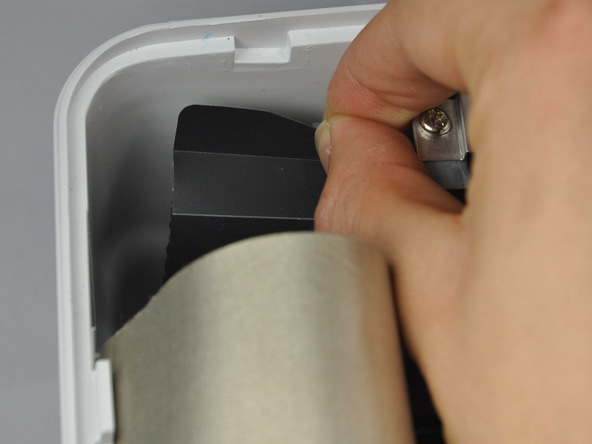
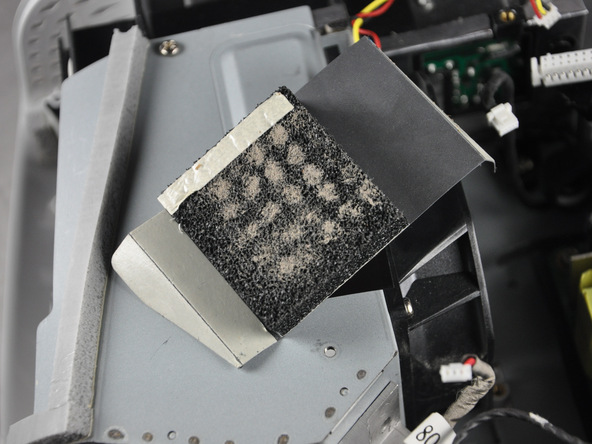
Carefully peel off each air filter from the device


Pull up on the air filter to remove it.

 
Step 6


Image 1/1: Try not to deposit dirt from the air filter into the inside of the device.

توسط

Epson Powerlite 915W Projector Lamp Ballast Replacement

Introduction

When three red lights start blinking on the LED display of these projectors, it often means the lamp ballast has gone bad. This will show you how to replace the ballast.

Step 1 Remove the bulb

 
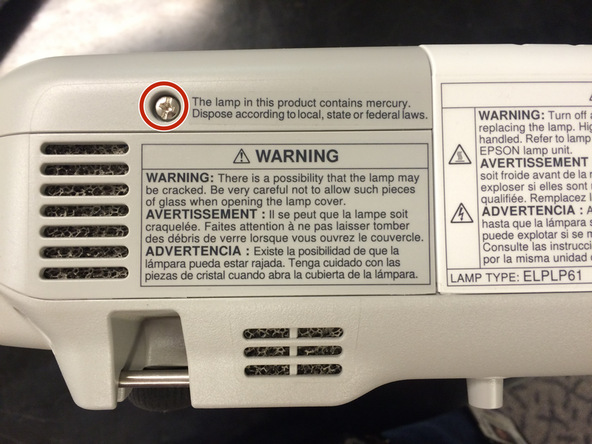
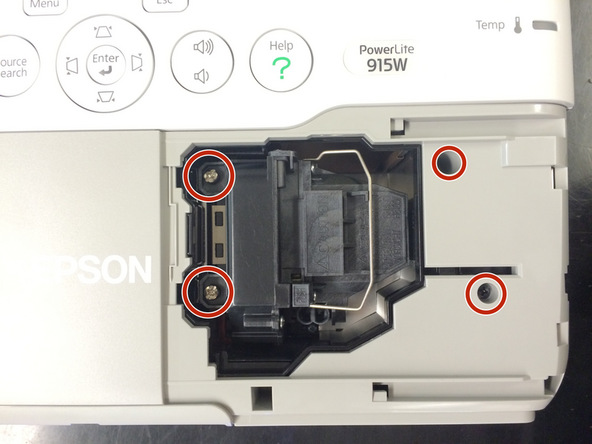
Image 1/3: While here, be sure to remove the 2 screws to the right of the lamp.Image 2/3: While here, be sure to remove the 2 screws to the right of the lamp.Image 3/3: While here, be sure to remove the 2 screws to the right of the lamp.


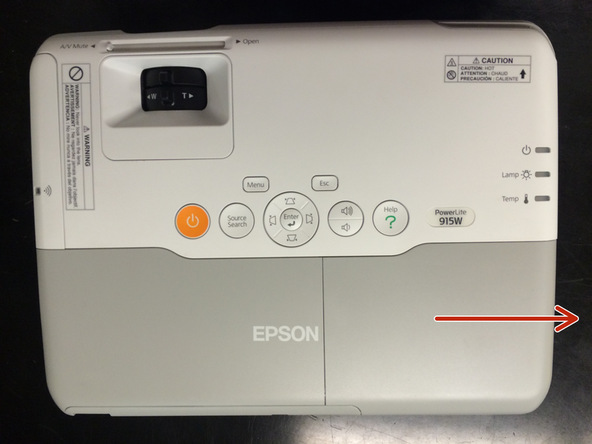
This is a standard procedure. Take off the cover, loosen the lamp screws and pull the lamp straight out.


While here, be sure to remove the 2 screws to the right of the lamp.


Step 2 Removing the Filter

 
Image 1/3: Pull the filter straight out.Image 2/3: Be sure to leave the filter door open as it will hold the projector case closed if it is closed.Image 3/3: Be sure to leave the filter door open as it will hold the projector case closed if it is closed.
 

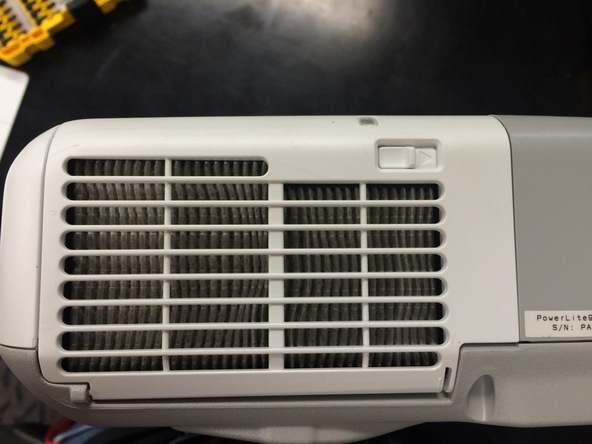
Slide the notch to the right and then open the filter area.


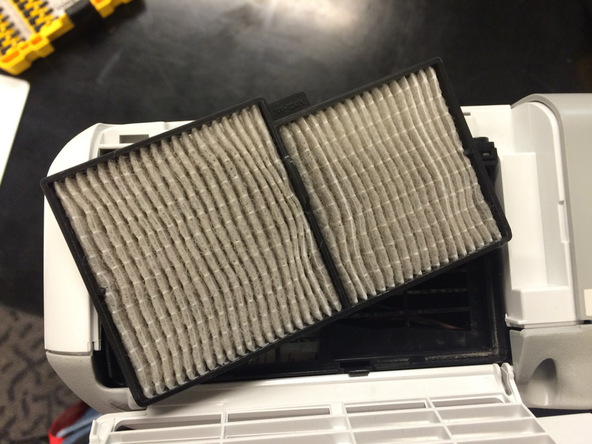
Pull the filter straight out.


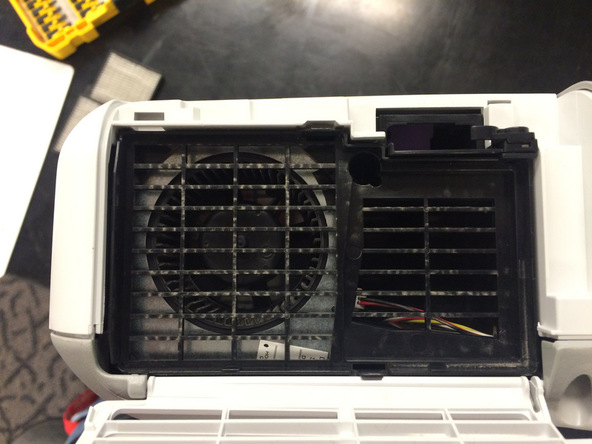
Be sure to leave the filter door open as it will hold the projector case closed if it is closed.


Step 3 Opening the Case

 
Image 1/3: Remove 5 screws from back panel. These are all the same as well (not the same as the ones on the bottom).Image 2/3: Lift the panel off.Image 3/3: When reassembling, it helps to save this step for after the top of the case is back together.
 

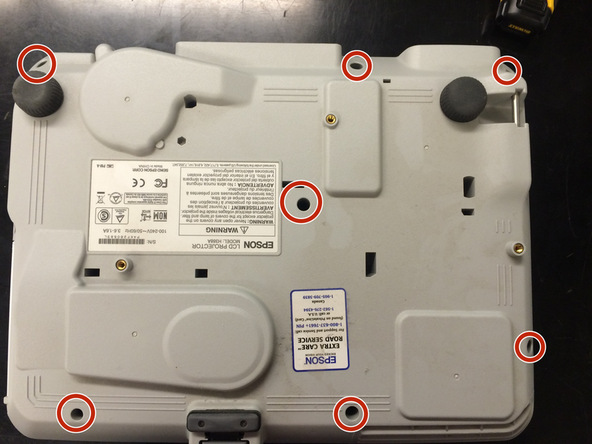
Remove 7 screws from the bottom. These are all the same size and thread.


Remove 5 screws from back panel. These are all the same as well (not the same as the ones on the bottom).


Lift the panel off.


When reassembling, it helps to save this step for after the top of the case is back together.


Step 4 Remove the Ribbon Cable

 
Image 1/2: Image 2/2:


Disconnect the ribbon cable connected to the LEDs on the outside of the case.


Step 5 Remove Lamp Area Bezel

 
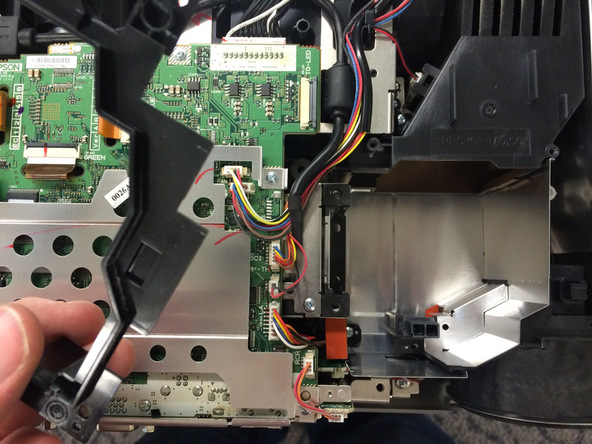
Image 1/2: Lift the bezel straight up.Image 2/2: Lift the bezel straight up.


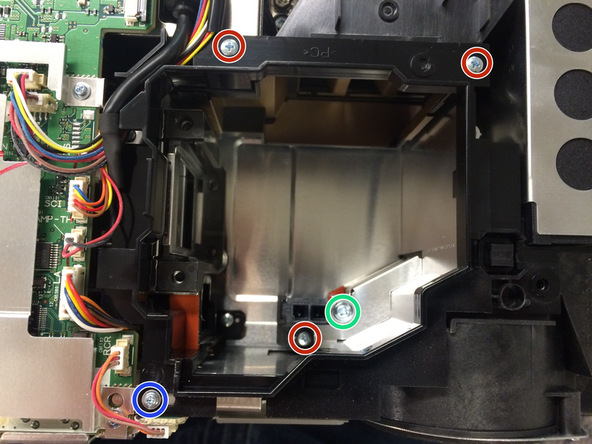
There are 5 screws in this area that need removed. 3 are the same and then there are 2 others that are each unique (marked with blue and green).


Lift the bezel straight up.


Step 6 Moving the Fan and Vent

 
Image 1/3: Pull wires off top of the vent and out of the channel to the side of the vent.Image 2/3: When you lift the fan, it will all come up as one piece, but still have wires connected. You donImage 3/3: When you lift the fan, it will all come up as one piece, but still have wires connected. You don


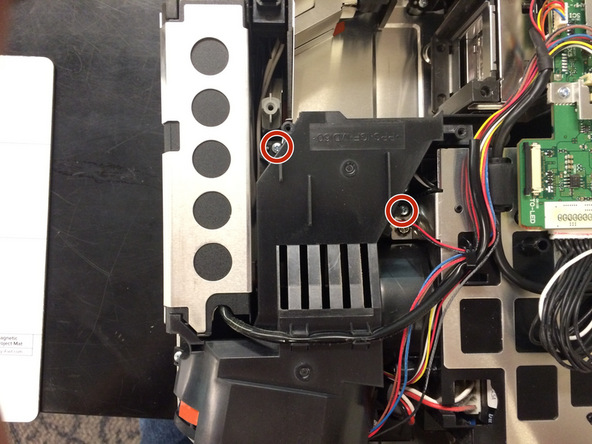
Remove 2 screws from the vent.


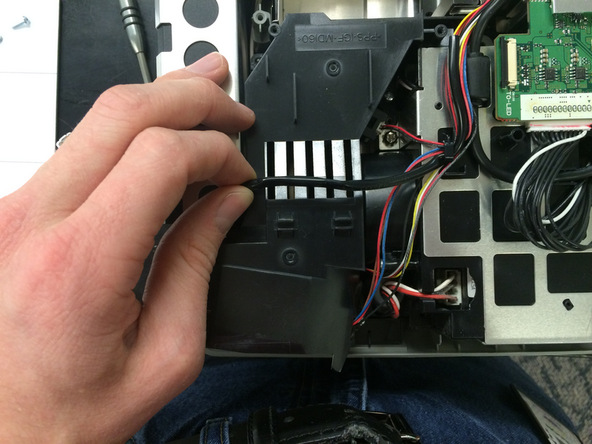
Pull wires off top of the vent and out of the channel to the side of the vent.


When you lift the fan, it will all come up as one piece, but still have wires connected. You don’t need to remove the whole unit, just movie it to the side. You will have to wiggle it out from under the cable that crosses over the top of it.


Step 7 Set Fan and Vent Assembly to the side

 
Image 1/1:


Move the assembly out of the way.


Step 8 Unscrew Lamp Ballast

 
Image 1/2: Image 2/2:
 

Remove the 2 screws from the front and back of the lamp ballast holder.


Step 9 Disconnect the Ballast


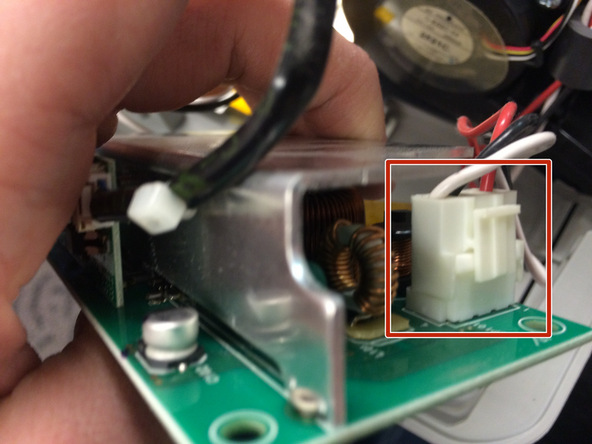
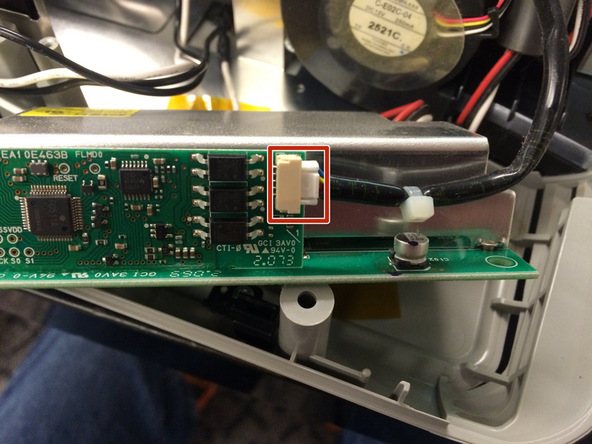
Image 1/3: Now you can slide the ballast out of the holder and disconnect the remaining 2 connections.Image 2/3: Now you can slide the ballast out of the holder and disconnect the remaining 2 connections.Image 3/3: Now you can slide the ballast out of the holder and disconnect the remaining 2 connections.


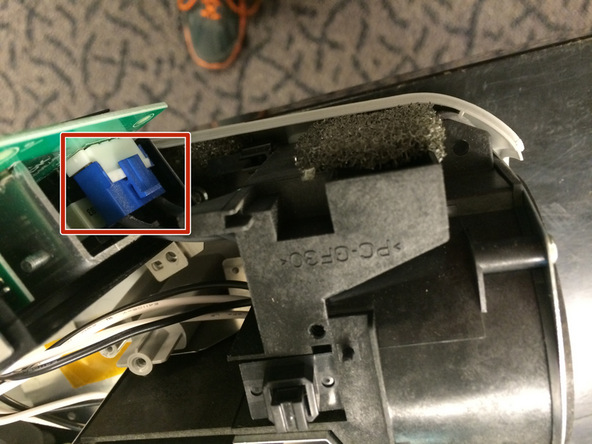
Lift the ballast and holder up in the back and slide it to where the blue plug is visible and then disconnect it.


Now you can slide the ballast out of the holder and disconnect the remaining 2 connections.

توسط

تعمیر و فروش انواع لامپ ویدئو پروژکتور دیتا سانیو

 مرکز تعمیرات و فروش لامپ انواع ویدئو پروژکتور سانیو

PANASONIC –NEC – SONY – OPTOMA – EPSON – PROXIMA – SHARP – HITACHI – ACER – TOSHIBA

 سرویس و تعمیر تخصصی انواع دستگاه های ویدئو پروژکتور

  جنرال سرویس و رفع ایراد های تخصصی، تشخیص و تعویض قطعه

 لامپ ویدئو پروژکتور، لامپ بلاست، تراشهDMD، چرخه رنگ، ال سی دی، منبع تغذیه، فن، MAIN BOARD

 تعمیر تخصصی برد الکترونیکی انواع ویدئوپروژکتور

safeland-800

Sanyo PLC-EF60A

Sanyo PLC-700M

Sanyo PLC-750M

Sanyo PDG-DHT8000L

Sanyo PLC-XF42

Sanyo PLC-XF41

Sanyo PLC-XF12NL

Sanyo PLC-XP10N

Sanyo PLC-XP20N

Sanyo PLV-WF20

Sanyo PLC-XF71

Sanyo PLC-XF1000

Sanyo PLC-XF70

Sanyo PLC-8800N

Sanyo PLC-XF12N

Sanyo PLC-EF60

Sanyo PLC-XF47

Sanyo PLC-XF10NL

Sanyo PDG-DHT100L

Sanyo PLC-XF45

Sanyo PLC-9000NL

Sanyo PLC-XF10N

Sanyo PLC-XF10NZL

Sanyo PLC-XF30N

Sanyo PLC-XF30NL

Sanyo PLC-XF46N

Sanyo PLC-9000NA

Sanyo PLC-9000N

Sanyo PLC-XF10NZ

Sanyo PLC-EF12NL

Sanyo PLC-EF12N

Sanyo PLC-EF10NZ

Sanyo PLC-HF10000L

Sanyo PLC-XF40

Sanyo PLC-EF10NA

Sanyo PLC-EF30NL

Sanyo PLC-HF15000L

Sanyo PLC-UF10

Sanyo PLC-EF30N

Sanyo PLC-UF15

Sanyo PLV-HD10

Sanyo PLV-HD100

Sanyo PLV-HD2000

Sanyo PLV-HD150

Sanyo PDG-DHT100WL

Sanyo PLC-XF47A

Sanyo PLC-XM80

Sanyo PLC-ZM5000

Sanyo PLC-XU58

Sanyo PLC-XP55

Sanyo PLC-XP200L

Sanyo PLC-XU35

Sanyo PLC-XU36

Sanyo PLC-XW20

Sanyo PDG-DWT50L

Sanyo PLC-XP46L

Sanyo PLC-XP57L

Sanyo PLC-XP56L

Sanyo PLV-75

Sanyo PLC-5500NA

Sanyo PLC-XP56

Sanyo PLC-XU07N

Sanyo PLC-XU37

Sanyo PLC-XU38

Sanyo PLV-60HT

Sanyo PLV-60K

Sanyo PLC-SP10

Sanyo PLC-WTC500AL

Sanyo PLC-XP18N

Sanyo PLC-XT10A

Sanyo PLC-XU45

Sanyo PLC-XU46

Sanyo PLV-80

Sanyo PLV-80L

Sanyo PDG-DET100L

Sanyo PLV-WF10

Sanyo PLC-SP20N

Sanyo PLC-SU22N

Sanyo PLC-XT15A

Sanyo PLC-XF60A

Sanyo PLC-XP40L

Sanyo PLC-XT10

Sanyo PLC-XF31NL

Sanyo PLC-8810N

Sanyo PLC-SP10N

Sanyo PLC-SU10N

Sanyo PLC-XP40

Sanyo PLC-XT15

Sanyo PLC-XU10N

Sanyo PLC-XF31N

Sanyo PLC-XP46

Sanyo PLC-XP30

Sanyo PLC-XF35NL

Sanyo PLC-XF20

Sanyo PLC-XF35N

Sanyo PLC-5600N

Sanyo PLC-XP07N

Sanyo PLC-XP45L

Sanyo PLC-XU22N

Sanyo PLC-EF31NL

Sanyo PLC-XP45

Sanyo PLC-EF10N

 Sanyo PLC-HP7000L

Sanyo PLC-XP17N

Sanyo PLC-XP17N

Sanyo PLC-XM150L

Sanyo PLC-XM100

Sanyo PLC-XM100S

Sanyo PLC-XT21L

Sanyo PLC-XW15

Sanyo PLC-XT20L

Sanyo PLV-1P

Sanyo PLC-SU60

Sanyo PLC-WM5500

Sanyo PLC-WM5500S

Sanyo PLC-XU51

Sanyo PLC-XU55

Sanyo PLC-XT25L

Sanyo PLC-XT21

Sanyo PLC-XT20

Sanyo PLC-XT11

Sanyo PLC-XT25

Sanyo PLC-XL51A

Sanyo PLC-ET30L

Sanyo PLC-XM150

Sanyo PLC-XM150S

Sanyo PLC-400N

Sanyo PLC-SU25

Sanyo PLC-SU30

Sanyo PLC-SU31

Sanyo PLC-SW20

Sanyo PLV-Z4

Sanyo PLC-XTC50L

Sanyo PLC-XP10NA

Sanyo PLC-SU32

Sanyo PLC-SU33

Sanyo PLC-XT35

Sanyo PLC-XT35L

Sanyo PLC-SU07N

Sanyo PLC-SW15

Sanyo PLV-20N

Sanyo PDG-DXT10L

Sanyo PLC-XU30

Sanyo PLC-WTC500L

Sanyo PLC-ZM5000L

Sanyo PLC-ZM5000S

Sanyo PLC-XF60

Sanyo PLC-XP41

Sanyo PLC-XP41L

Sanyo PLC-SU20N

Sanyo PLC-SW10

Sanyo PLC-XU31

Sanyo PLC-XP50L


توسط

Projector Fan Repair

Projector Fan Repair

Projector fans ensures that the machines keeps working at peak performance throughout its life span.  Beside ensuring a source of clean power, the second most important thing is ensuring clean and cool air flow. Projectors bulbs produce intense heat. Keeping it cool requires constant air flow

There are generally 3 different types of fan in a standard DLP, LCD or LCOS projector. A set cools the ballast,  an air intake fan for the chassis as well as an exhaust fan, and another for cooling the lamp. The chassis fan helps in sucking out hot air generated by the lamp. Some DLP and LCOS projectors also have fans near the lenses assembly to cool the DLP chip.

If any of these fans are defective, a projector may not power up at all. Where they are clogged with dust and soot, the projector will start to overheat. Overheating can result in unexpected shutdown, burnt lamp, and total failure of the projector.

projector Fan Repair
توسط

Colour Wheel Replacement

توسط

Projector Maintenance

Projector Maintenance

Is your projector displaying blurry images? Is it overheating or noisy? Any of these issues could be a precursor of an outright burnout if not addressed.
What is preventative maintenance? Preventative maintenance performs a set of tasks as advised by your projector manufacturer. It will among other things prevent your projector from overheating, short circuiting or a burn out.

The tasks that we perform during the maintenance call out includes;

  • Fan Cleaning / fan replacement.
  • Air filter cleaning / replacement
  • Optics/LCD panel convergence check, cleaning & realignment
  • Lamp life check and replacement
  • Lens focus and zoom function check.
  • Ballast cleaning and replacement where necessary.
توسط

White Dots on Projector Image Repair

White Dots on Projector Image Repair

Projectors equipped with digital micro-mirror device will fail after a period of use. The length of time depends on the environment where the projector is being used. The hotter the environment, the earlier the projector will fail. When it starts to fail, you may notice snowy dots or stars on projected images. Once this anomaly starts, it is irreversible. Images will gradually degrade until the whole screen gets covered with dots.

We can now repair this fault and give your projector a new life again. All repairs are with standard 3 months warranty but once repaired, the machine is guaranteed to work as new for up to 3 to 4 years, depending on the environment
This is a complex job, not for a DIY enthusiast.

Advantages and Disadvantages to DLP Projectors

DLP projectors require less maintenance than LCD projectors because they have a filter-free and sealed chip design, which means dust can’t settle on the chip and cause an image spot. They are effectively immune to color decay. Furthermore, they are not subject to the misalignment that can occur in LCD projectors with a three-panel design, which require each panel to be in perfect position to combine the image at the proper angle.
DLP projectors are not readily compatible with zoom lenses or lens shift functions, This result in poor viewing range. As such they are best suited to smaller environments.

توسط

Repair projector

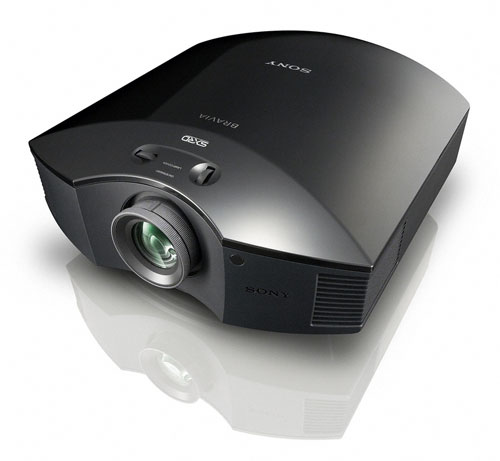
We offer full projector repairs on all LCD and DLP projectors. We provide projector repairs for all makes and models by certified and trained technicians. Whether you use your projector to watch movies or use it for work presentations, it’s vitale for it to be in working order when you need it most. You can come to depend on NP Technologies for all of your projector repair needs as we are commited to provide you with repairs by using only new OEM parts from the manufacturers.
%image_alt%

• Possible Projector Problems (Problem – Cause):

• Lamp light flashing – Lamp Ballast

• Temperature light flashing – Fan

• Lines in image – Cables or main board

• Power Cuts Out – Internal power supply

• Power but no image – Lamp ballast

• No power – Internal power supply

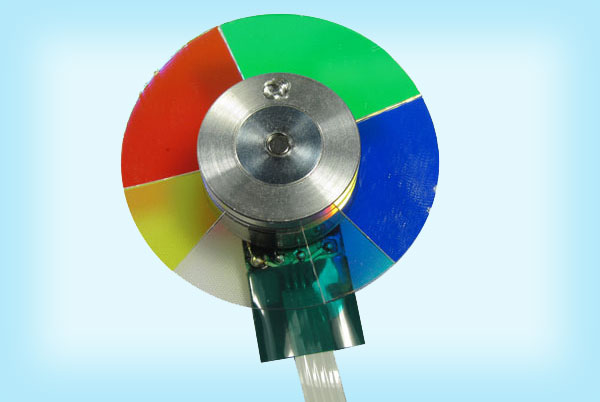
• Colours Distorted – Colour wheel

NP Technologies has a very simple and worry free projector repair process for our customers. If you’re interested in our projector repair services, you can either call us, email us, or fill out the quote form here on the right to receive an approximate quote for the repair of your projector. Due to our extensive experience in the projector repair sector, our technicians are precise when determining the problem with your projector for your online quote.

If you’re satisfied with the details of the quote, you may either bring in your projector to our location or ship it to us. If you choose to ship your projector to us, please remember to package the projector with plenty of either loose fill or bubble wrap. Also, please include your name, address, phone number and email address on a piece of paper inside the box.

Once your projector is received, it will be immediately diagnosed. Once the diagnostic process is complete, you will be contacted by one of our certified projector repair technicians and provided with the details of the cause of the problem and the exact amount of money needed to fix the issue. At that point you will have the option of either proceeding with the repair of your projector or picking it up free of charge.

Upon approval of the provided quote, we will repair your projector within 1 business day in most circumstances. Once your projector is repaired, you will get a call at which point you may come in to collect it. Since we are so confident in our projector repair service, all of our repairs come with an unconditional 120 day warranty on parts and labour.

All of our projector repairs come with a FREE projector cleaning and adjustment service which includes:

–       Clean air filter

–       Clean housing

–       45 point inspection

–       Verify colour quality

–       Clean and align optics

–       Check focus and zoom

–       Clean and lubricate fan

–       Test inputs: audio & video

–       Remove optic contamination

–       Check brightness and contrast

سایت فروشگاهی